
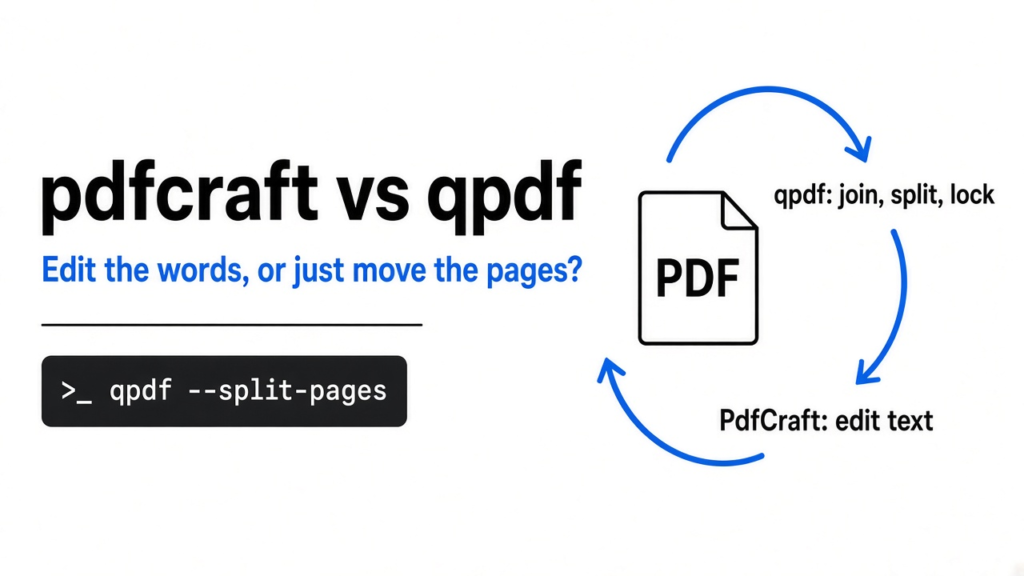
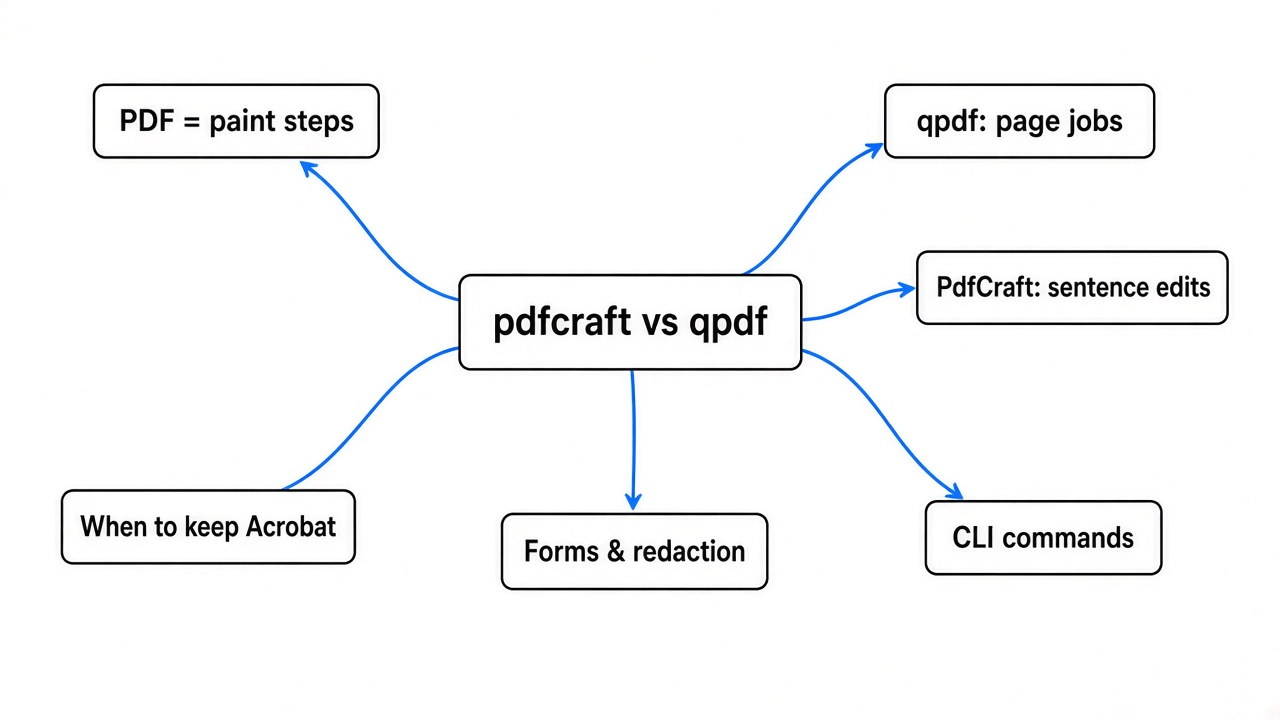
pdfcraft vs qpdf comes down to one question: do the words on the page have to change? This hands-on tool comparison puts both through the same small jobs. Use PdfCraft when you need to change a sentence or script a long list of edits, and use qpdf when you only need to join, split, rotate, or lock pages.
A PDF (a file of drawing commands that a viewer paints onto sheets) is not a Word file with a different ending. That is why a contract that looks easy to fix can refuse a normal editor: the letters are not letters you can retype. They are paint.
PdfCraft is a free PDF workbench (a program for reading and changing those files) built from the public rules of the format, not from Adobe’s code. It has a windowed app and a CLI (a program you run by typing, with no window) named pdfcraft-cli. qpdf (a command that rearranges and locks PDF pages without trying to repaint the words) is the tool many people already trust for that narrower job. The test files here are two tiny PDFs, small on purpose so every step is easy to check.
What is a PDF file, and why editing one is hard
A PDF is a box of numbered objects, and each page points at its own list of drawing commands.
Start from the page you can see, then go one step down. A page (one sheet inside the file) does not store “a paragraph” the way a text note does. It stores a content stream (the list of steps: move here, use this size, draw these letters). A font (the letter shapes those steps point at) is a separate object. The catalog (the object that says where the page list starts) is another. When you “edit the sentence,” a careful tool finds the draw-text step and replaces it. A careless tool takes a photo of the page and draws a white box over the old word. Both can look fixed on screen. Only one of them still has real text you can search.
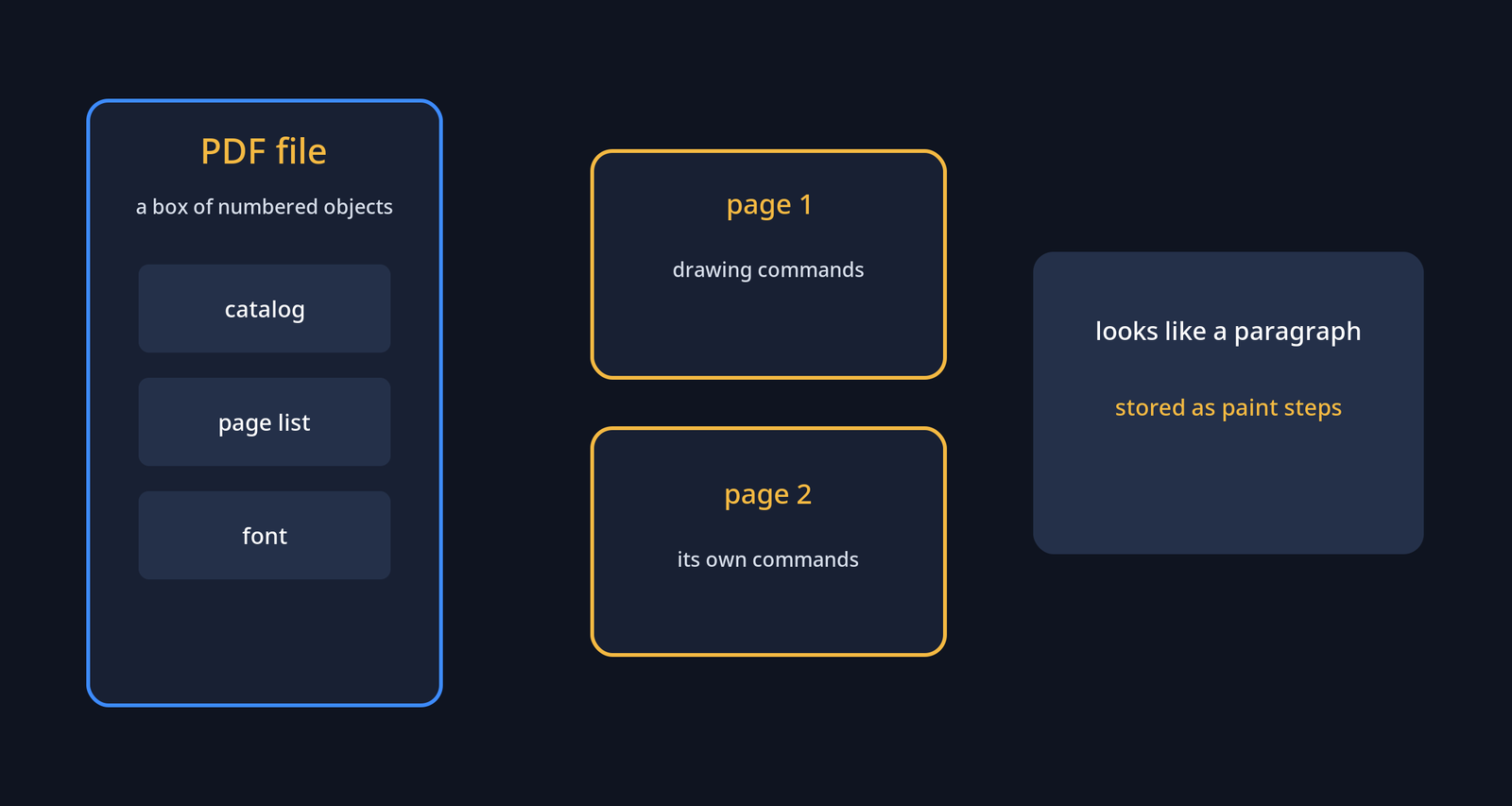
That is why a PDF that looks simple can still refuse a normal editor. The words were never a document. They were instructions to a painter. If the page is a picture of a paper scan, there is no sentence to replace until someone reads the picture. Everything below uses files whose words are real text.
pdfcraft vs qpdf: which tool for which job
Use PdfCraft to change words or to drive a long list of edits, and use qpdf when the pages only need to move or be locked.
This is a comparison of jobs, not a speed race. qpdf is the right first tool when you want to join files, pull out a range of pages, rotate, or set a password, and you do not need the letters themselves to change. It has been that tool for a long time, and it does not pretend to be a full editor. PdfCraft wants the wider job: read the file, show it, move pages, and also reach the words, the bookmarks, the forms, and a script. That wider job is why it can help, and why it can also surprise you.
Here is the surprise. Join a two-page file and a one-page file:
pdfcraft-cli combine a.pdf b.pdf --out combined.pdfThe text command then printed three lines, in order: alpha, beta, gamma. The summary said 3 pages. The run took 0.014 seconds, and the new file was 1,044 bytes. It also added two bookmarks (clickable names in the side list that jump to a page), titled a and b after the input file names. a pointed at page 1. b pointed at page 3. If you combine contracts and then send the file to someone, they will see those names. That may be what you want. It is not “nothing changed except the page count.”
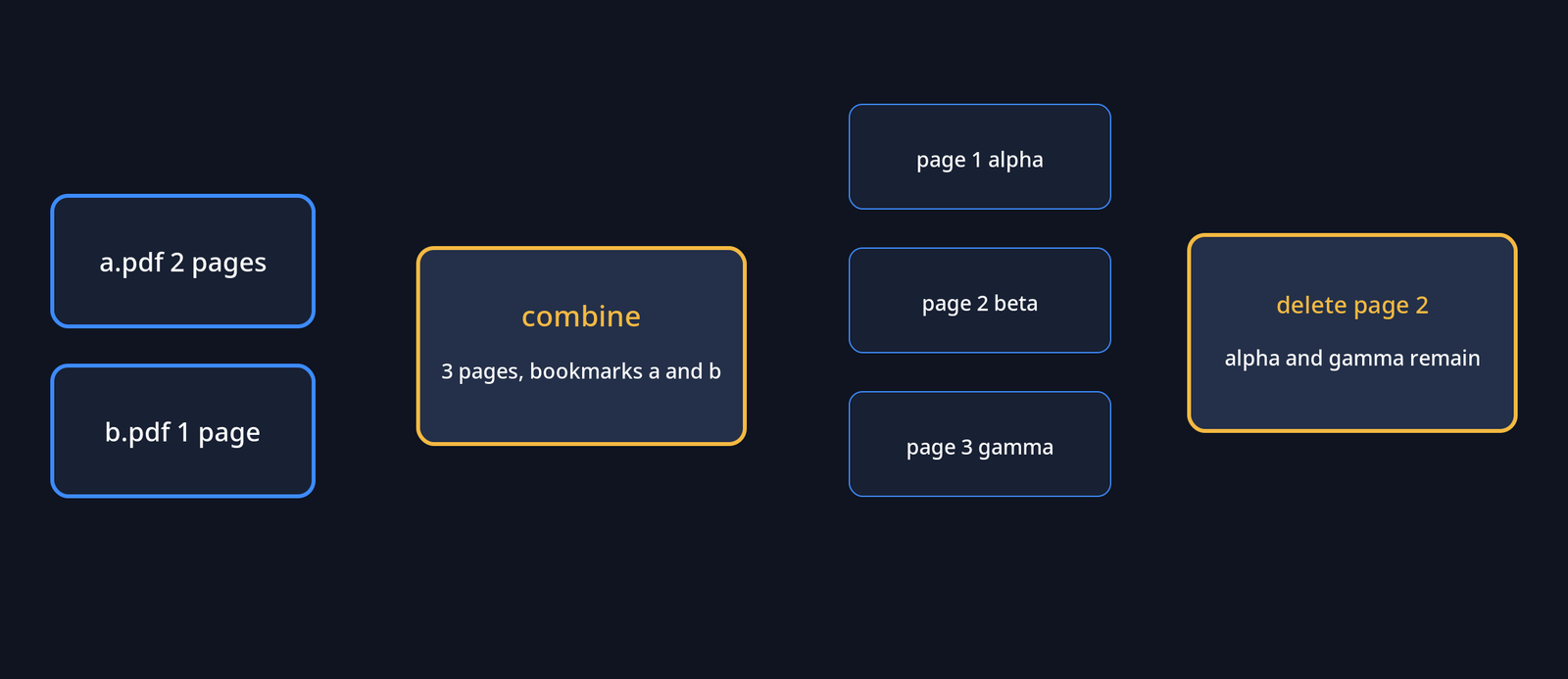
Splitting that three-page file put each page in its own file, and each file still had the right sentence.
pdfcraft-cli split combined.pdf --every 1 --out-dir partsThat took 0.015 seconds. Deleting page 2 left alpha and then gamma.
pdfcraft-cli edit combined.pdf --out trimmed.pdf --delete 2That took 0.016 seconds. The file did not get smaller. It grew from 1,044 bytes to 1,709. Deleting a page is not the same as throwing those bytes in the bin. The new file can carry more structure than the one you started with. Check the size and the text after the command, not only the page count.
| Job | PdfCraft, hands-on | qpdf, what it is for |
|---|---|---|
| Join two files | Yes. 2 pages plus 1 page became 3, in 0.014 seconds | Yes. This is a core job |
| Split every page | Yes. Three files, sentences intact | Yes |
| Delete one page | Yes. Page 2 was gone. File grew | Yes |
| Rewrite one sentence | Yes. alpha became delta. Page 2 stayed | No. It does not repaint words |
| Side list after a join | Added bookmarks named after the files | You choose outlines yourself |
| Password, linearize, inspect structure | Not covered here | Yes. Stay here for that |
If the only sentence you care about is “put these pages in one file,” qpdf is the smaller bet. If you also need the words to change, qpdf will not do that step, and that is the gap PdfCraft is trying to fill.
How to use the pdfcraft CLI
Install the command-line build, then start with text, info, combine, split, and edit.
The command is pdfcraft-cli. The first screen, with no arguments, is the map. You do not need the windowed app for the jobs below. The windowed app is the thing you open with a mouse. The CLI is the same engine, typed.
Read the words before you change anything.
pdfcraft-cli text a.pdf
pdfcraft-cli info a.pdfOn the two-page test file, text printed both sentences, with a blank line between them. info printed a small JSON summary: 2 pages, 865 bytes, not encrypted, no bookmarks, no form fields. JSON (a text shape of names and values that other programs can read) is useful here because a script can check the page count without guessing from the picture.
Then the page jobs, which are the ones that overlap qpdf:
pdfcraft-cli combine a.pdf b.pdf --out combined.pdf
pdfcraft-cli split report.pdf --every 10 --out-dir parts
pdfcraft-cli extract report.pdf --pages 1,3,5 --out picked.pdf
pdfcraft-cli edit report.pdf --out turned.pdf --rotate 1:90 --delete 4
pdfcraft-cli edit report.pdf --out named.pdf --title "Desk note"The title change on the original two-page file worked: the summary afterward showed the title Desk note, still 2 pages, still no bookmarks, and the file grew from 865 bytes to 1,106. Setting a title is a real edit. It is also a reminder to look at the file after, not only at the command’s silence. These commands do not print a celebration. They write a file. Open that file.
One more command is worth knowing before you trust a picture. render writes a PNG of one page.
pdfcraft-cli render a.pdf --page 1 --dpi 72 --out page1.pngIt reported a 612 by 792 pixel image in 1 millisecond, and the file was a real PNG. The sentence was not visible in that picture, even though text had already printed “Page one says alpha”. So for this homemade file, trust text, not the picture. If you render a page and the words are missing, do not assume the file is empty. Ask text what is actually stored.
There is a second way in, for a script rather than one command. pdfcraft-cli run --script steps.json walks a list of tool calls. pdfcraft-cli tools prints every tool and the fields it accepts, 161 names in total. You will not learn them by reading the list. Learn the five commands above, then open the list when you need bookmarks, forms, or a watermark.
How to edit one sentence in a PDF with PdfCraft
The test replaced the words “Page one says alpha” with “Page one says delta”, and page two stayed “Page two says beta”.
The plain edit command moves pages and sets a title. It does not take a sentence. The sentence change is a tool call: ask for the paragraphs on page 1, get back one paragraph whose text was “Page one says alpha”, then call the text edit tool with that paragraph number and the new sentence, then save to a new path.
The saved file was 905 bytes, up from 865. text printed the new first sentence and the old second sentence. The save report said the write was not an incremental save (a save that glues the changes onto the end and leaves the old bytes in place), because saving to a new path rewrites the file. The undo label on the open document was “Edit text”. One sentence changed, the other page left alone.
This is in contrast to painting a white box over the old word. A box can hide letters and still leave them in the file, where search and copy will find them. PdfCraft has a separate check for that kind of fake removal. It was not needed here, because the text command showed the new sentence, not the old one hiding underneath.
Two limits sit next to that success. The add-text tool’s own description refuses characters outside a Western European set, so treat non-Latin text as unproven. And this file used a plain Helvetica sentence. A designed report, with text split into tiny pieces, can fail a “replace the paragraph” step even when a simple file works. Try the change on a copy. Read it back with text before you send it.
pdfcraft vs LibreOffice Draw
LibreOffice Draw turns the page into shapes you can drag, and PdfCraft replaces the sentence where it already sits.
Draw is the drawing program inside LibreOffice (the free office suite). People open a PDF in it because it is already installed. It can work, and it can also turn a calm page into a pile of boxes, with a line break in the middle of a word. That is what happens when a drawing tool imports paint steps as objects it can move. You then drag those objects. You are no longer editing the original sentence. You are editing a conversion.
Draw is a good place to nudge a stamp, a box, or a one-off label on a page you will export again. PdfCraft changed the stored sentence and left the next page’s sentence alone. If the file has to go back to a coworker as a normal PDF, changing the sentence beats exploding the page into shapes.
If the thing you actually need is a Word file, stop. A PDF is the wrong starting point, and neither of these tools is a word processor. Writing the document in a real editor, then exporting, is the cleaner path. That choice is the same one as wordcraft vs libreoffice when the file has to leave the machine as a Word document. A resume that should become a PDF from a text file is a third path, closer to rendercv vs latex than to repairing a PDF you already have.
Can PdfCraft replace Acrobat?
No. Not if the job is a signed form, a scanned contract, or a file a print shop will reject.
Acrobat is the paid editor people mean when they say “the PDF program.” PdfCraft is trying to cover the offline part of that job: read, search, combine, split, notes, forms, and a lock on the file, without an account and without uploading the document. The project is still early. The page commands and a one-sentence edit worked. That does not prove a 40-page form with a signature will survive.
Keep Acrobat, or a specialist tool, when any of these are the actual job:
- A scan, where the page is a picture and the words are not text yet
- A form that people fill in a browser, especially the old kind of live form
- A signature that a client or a court will check online
- A print-shop file with strict color and font rules
- Office-to-PDF export as the main task
For “join these three reports and fix one sentence on page 2,” try PdfCraft on a copy. For “this signature must still verify,” do not make it the only tool in the chain.
Pages are separate sheets even when the viewer shows them as one long scroll. That is why split and delete are the easy wins, and why a sentence edit is the harder promise. The easy wins are also the ones qpdf already does.
When not to use PdfCraft
Do not use PdfCraft as the only tool on a file you cannot afford to break, or on a scan, or when qpdf already does the one job.
The safe rule is a copy. Run the command on a copy, then run text and info on the result. Also open the result in the viewer you and your reader actually use. The picture export above did not show the sentence even though the text was there. Your viewer might. Check both.
Skip PdfCraft for the narrow structural job. Joining, splitting, rotating, and encrypting are qpdf’s home. Adding a second young program in the middle only adds a place for a surprise, like bookmarks nobody asked for.
Skip it when the letters are not letters. A phone photo of a receipt has no sentence to replace until an OCR step (a reader that guesses words from a picture) runs. The add-text path also refuses characters outside a Western European set, so do not pick it for a file in another script without a trial on a copy.
Skip it when another program already owns the file type. A slide deck is not a PDF problem until you export one. Building the slides is closer to making a PowerPoint with a coding assistant or to OfficeCLI, which edits Office files without the paid suite. A picture with layers is closer to photocraft vs gimp. PdfCraft does not become the right tool just because the other file can be exported to PDF at the end.
One more door, if a coding assistant will do the clicks. pdfcraft-cli mcp can sit where the assistant calls tools. MCP (a small local connection that lets the assistant call a program) is opt-in here, and this one does not open a network port. It only talks on the connection the assistant already has. That is useful. It is also a reason to point it at a folder of copies, not at the only signed original.
Keep qpdf on the machine for joins and splits. Reach for PdfCraft when a sentence has to change and you can check the result with text before anyone else sees the file. Do not hand it a signed scan and hope.
Common questions about pdfcraft vs qpdf
Can I replace Acrobat with PdfCraft?
Not as a full replacement. Use it for local page edits and a checked sentence change. Keep a specialist tool for signatures, scans, and print-shop files.
Does PdfCraft upload my PDF?
The CLI commands write files on the same machine, and none of them send the PDF to a website. The windowed app is built to work offline. Do not confuse that with a random “free PDF” site in a browser, which does upload the file.
Is qpdf enough if I only need to merge?
Yes. If you are only joining, splitting, rotating, or locking pages, qpdf is the smaller tool and the one to run first. PdfCraft also merges files, but it adds bookmarks named after them.
Can PdfCraft read a scanned page?
A scan is a picture. The text command can only print words that are stored as text. If text comes back empty, the page has not become a sentence yet, and replacing a paragraph will not invent one.