
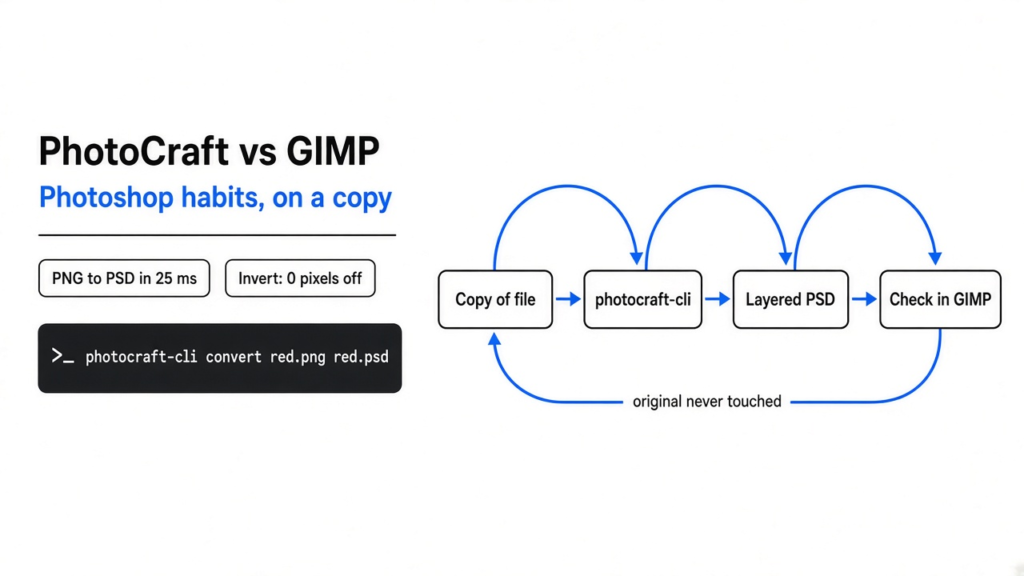
The file on the desk was a picture with the words still on their own sheet, and the editor that felt familiar wanted a subscription. GIMP is the free editor people already name for that job. Its menus are its own, not Photoshop’s. PhotoCraft is a different free editor, written to open that same kind of file and to put the tools where Photoshop puts them. This test skipped the window and used the command that ships beside it. A red square went in, a Photoshop file came out, and inverting the color matched the arithmetic exactly. Keep GIMP for the file you cannot lose. Try PhotoCraft on a copy, when the shortcut in your hands is the thing GIMP keeps moving.
What is PhotoCraft?
PhotoCraft is a free image editor that tries to behave like Photoshop, including the file Photoshop writes. That file is a PSD: one picture made of separate sheets, called layers, instead of one flat grid of pixels. A layer is one of those sheets. You can hide it, move it, or change its color without painting over the sheet below. PhotoCraft is open source, which means you can read the program and run it on your own machine, offline, with no account. The project calls the current build early alpha. That phrase means the shape is there and the edges are still sharp. It is not a promise that a client job will survive the afternoon.
The window is drawn by the program itself, not by a web page stuffed inside a frame. The picture on the canvas goes through the graphics card. The library that talks to that card is called wgpu, so the same drawing path can run on macOS, Windows, and Linux. There is also a build that runs inside a browser. WebAssembly is the form that lets the same program run on a web page without installing the desktop app. That build was not used here. The command line was, because a command either changes the file or it does not, and the pixels can be checked after.
PhotoCraft vs GIMP: which should you use?
Use GIMP when the picture has to be finished, and use PhotoCraft when you want Photoshop’s habits on a copy of the file. GIMP has been the usual free answer for years. You install it, you learn its menus, and a broken shortcut is a surprise rather than the weather. PhotoCraft’s bet is the opposite. If your hands already know Photoshop, the menus and the keys should be where those hands reach, and a PSD should come back with its layers still layers.
GIMP was not run on the same square, so this is not a pixel contest. It is a job split.
| GIMP | PhotoCraft | |
|---|---|---|
| What it is | The free editor that has already lived with real files for years | A free editor aimed at Photoshop’s layout, shortcuts, and files |
| Where it runs | On your computer | On your computer, and as a page you can host |
| The file you hand it | Opens many formats, and opens a PSD with limits | Turned a PNG into a PSD and read the layer back |
| How you drive it | Mostly the window | The window, or a command called photocraft-cli |
| Photoshop plug-ins | No | No |
| Generative fill | Not the Photoshop feature | Not in this build |
| What to risk | The working copy, once you know the tool | A duplicate, not the only file |
Photopea sits near this choice and is easy to confuse with it. Photopea is a Photoshop-like editor in the browser. It is not this project, and it is not open source. If the job is a familiar layout for ten minutes and you can tolerate ads, that is a different product. If the job is a program on your disk, with a command you can put in a script, PhotoCraft is the one that was actually run here.
Does PhotoCraft open PSD files?
Yes. A PSD is that layered Photoshop file, and the command writes one. The test input was a tiny PNG, 64 pixels on a side, every pixel the same red: 220 red, 30 green, 40 blue. A PNG is a flat picture, one grid, no stack of sheets. photocraft-cli convert red.png red.psd finished in about 25 milliseconds. The PNG was 137 bytes. The PSD was 2,206 bytes. Then photocraft-cli info red.psd --compact printed the document as text: width 64, height 64, mode Rgb, depth 8, one layer, kind Pixel, name Background. Converting that PSD back to PNG gave all 12,288 color bytes of the starting red. Nothing was invented in the round trip.
That is a flat red square, not a poster with type, masks, and effects. A mask is a sheet that hides part of a layer without deleting the pixels. An adjustment layer is a sheet that changes color, such as curves or invert, while the pixels underneath stay stored. The project says it can carry those. It also says a menu item wired to a command is not the same thing as behaviour that matches Photoshop. Trust the second sentence more than any percentage. The test file had one layer and no type. If your PSD is the one a client will print, open a copy.
The project keeps its own file as well, ending in .pcraft, with room for autosave. It was not used here. For a handoff, a PSD or a PNG is what the other person can open. Convert also names JPEG, TIFF, WebP, and EXR. A TIFF written by this command is flat unless you pass a flag that keeps the layers. Only PNG and PSD were checked, because those two are the pair a Photoshop user actually sends.
What does the photocraft-cli info output mean?
Read it as a list of names and values. You do not need a tour of the text format. The names that matter first are the size, the color mode, the depth, the layer stack, and the warnings.
Width and height are the picture size in pixels. Mode came back as Rgb, which means the color is stored as red, green, and blue, not as the inks a press uses. Depth 8 means each of those three channels is a whole number from 0 to 255. The layer list is the stack. This one had one entry: name Background, kind Pixel, blend Normal, opacity 1. Opacity 1 means fully visible. Warnings was an empty list. An empty list is the quiet result you want. A warning means the program opened the file and was unsure about something in it.
Info does not change the file. Convert and run do. If the mode is not Rgb, or a layer you need is missing from that list, stop. Open a copy in GIMP before you invert anything. The check is free. The edit is not.
How do I install PhotoCraft on Linux?
Download the Linux AppImage from the project’s releases, mark it executable, and run it. An AppImage is one file that is the whole app, so you do not need a package manager for the first try.
chmod +x photocraft-linux-x86_64.AppImage
./photocraft-linux-x86_64.AppImageThe command-line tool is not the window. It is photocraft-cli, and it sits in the same package. Unpacking the AppImage gives usr/bin/photocraft-cli. If you would rather have that command on your path, the .deb, the .rpm, or the tarball from the same release is the cleaner install. The macOS command-line build is a separate zip, not tested here.
Two limits are worth knowing before you blame the picture. On Wayland, which is the newer way Linux draws windows, dropping a file onto the window does not open it. Use File, then Open, or paste with Ctrl+V. A pen tablet on Wayland is opened through Xwayland, the compatibility path, not through the native tablet protocol. If the pen feels wrong, that is the place to look, not the brush size.
How do I edit a photo from the command line?
Call photocraft-cli with convert, info, or run. You do not need a model, and you do not need the window. A model, here, would be a system that looks at the picture and guesses the next step. These commands do not guess. They do the thing you named.
photocraft-cli convert red.png red.psd
photocraft-cli info red.psd --compact
photocraft-cli run red.psd --cmd image.adjustments.invert --out red-invert.pngInvert means each color channel becomes 255 minus itself. Red 220 became 35. Green 30 became 225. Blue 40 became 215. Every pixel of the 64 by 64 result was checked. The difference count was zero. The step finished in about 17 milliseconds.
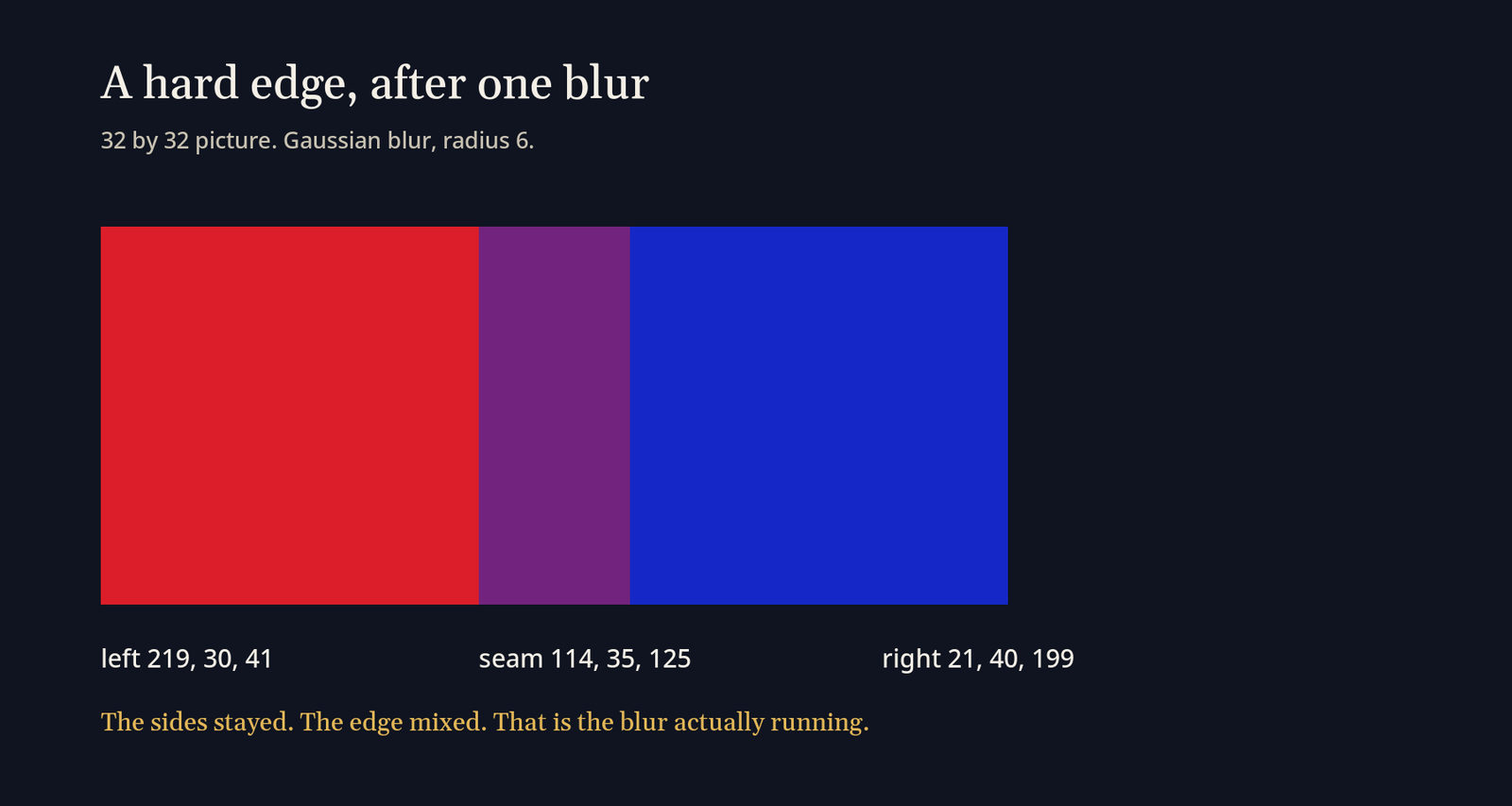
A blur is the interesting one, because a flat color does not show it. The second test picture was 32 by 32, red on the left half and blue on the right, run through Gaussian blur with radius 6. Gaussian blur is a soft smear: pixels near an edge take on some of the color from the other side.
photocraft-cli run split.png --cmd filter.blur.gaussianBlur --params '{"radius":6}' --out split-blur.pngThe far-left pixel stayed almost red, 219, 30, 41. The far-right pixel stayed almost blue, 21, 40, 199. The pixel on the seam became 114, 35, 125, which is neither side. The command returned that filter and that radius. The picture agreed.
The help text also lists batch and droplet. A droplet is a saved list of steps you drop files onto. None was made here. commands prints the registry, one id per line. The list that came back was hundreds of lines, from blur to a new adjustment layer. Only two ids were used, image.adjustments.invert and filter.blur.gaussianBlur. A wrong id is an error. The tool does not pick a nearby filter for you. That strictness is what you want in a script.
The same tool can sit as MCP (a small server an agent is allowed to call) with photocraft-cli mcp. This test stayed on convert, info, and run. A command that can rewrite a folder should not meet the only copy of the folder. Batch refuses to write results back onto the input folder unless you pass the flag that allows it. That refusal is the right default. If a coding agent is the thing that will hold the command, give it a copy on a machine you can throw away. coop is the version of that rule to start from. dbx is the same shape on a database: the agent can drive the tool, and you still set the boundary before the first write.
Is PhotoCraft worth it?
Worth it on a copy, for someone whose hands want Photoshop and whose file is a normal layered picture. Not worth it as the only editor on a job with a deadline. The project says this in plainer words than the feature list: early alpha, not a daily replacement for professional work. The gaps it names are the generative tools, about twenty tools still missing, thin type, thin print-style workflows, and no Photoshop plug-ins. A plug-in is someone else’s add-on. If your shop runs on those, this program cannot load them.
Install it beside GIMP, not instead of GIMP. GIMP is where a weird file goes when you need a tool that has already failed in public for years and been fixed. PhotoCraft is where you go when the shortcut you remember is the point, or when you want a script to invert, blur, or convert without opening a window. The same split shows up whenever a free tool is offered as the paid one. The open source stand-in for Semrush is useful for a slice of the job and a bad place to delete the old login. Delete nothing until a real file has survived a round trip you can check.
The project and the code live at storytold/photocraft. GIMP’s own site is gimp.org, which is the place to get the editor you should not uninstall yet. Keep GIMP installed, and keep the three commands, because a red square that inverts to the exact complement is a better introduction than a feature grid. If the seam on a real photo blurs the wrong way, or a layered PSD comes back flat, that file goes back to the editor that has already earned the job.
Common questions about PhotoCraft vs GIMP
Should I replace Photoshop with PhotoCraft?
No, not if Photoshop is how you ship. PhotoCraft does not have generative fill, it does not run Photoshop plug-ins, and a menu that exists is not a guarantee the result matches the program you learned. Cancel a subscription only after a week of copies, not after a red square. If the work is a crop, a layer, a blur, and a PNG, the command line already handles the blur and the convert without an account. If the work is type that must match a brand, a press file, or a plug-in your printer expects, stay where you are.
Does PhotoCraft work offline?
Yes. The commands above never asked for a network, and there is no account in the steps. The browser build is optional. The desktop command is the one that stays on the machine.
Is Photopea the same as PhotoCraft?
No. Photopea is a separate editor that runs in the browser and is not this open source project. PhotoCraft is the one with photocraft-cli, writes the PSD on disk, and has a license that lets you keep the program.
Can I use PhotoCraft and GIMP on the same file?
Yes, if you keep a copy. Let PhotoCraft touch the duplicate, then open the result in GIMP when you want a second opinion from a tool you already trust. Do not let either one save over the file a client sent. The batch command’s refusal to overwrite its input folder is the habit to copy by hand: a new folder for the output, the original left where it was.
Does PhotoCraft keep PSD layers in a round trip?
On the one-layer test file, yes. photocraft-cli info read back one Pixel layer named Background at 64 by 64, Rgb, depth 8, with no warnings, and converting back to PNG matched all 12,288 color bytes. Files with type, masks, and effects were not part of that test.
2 comments