


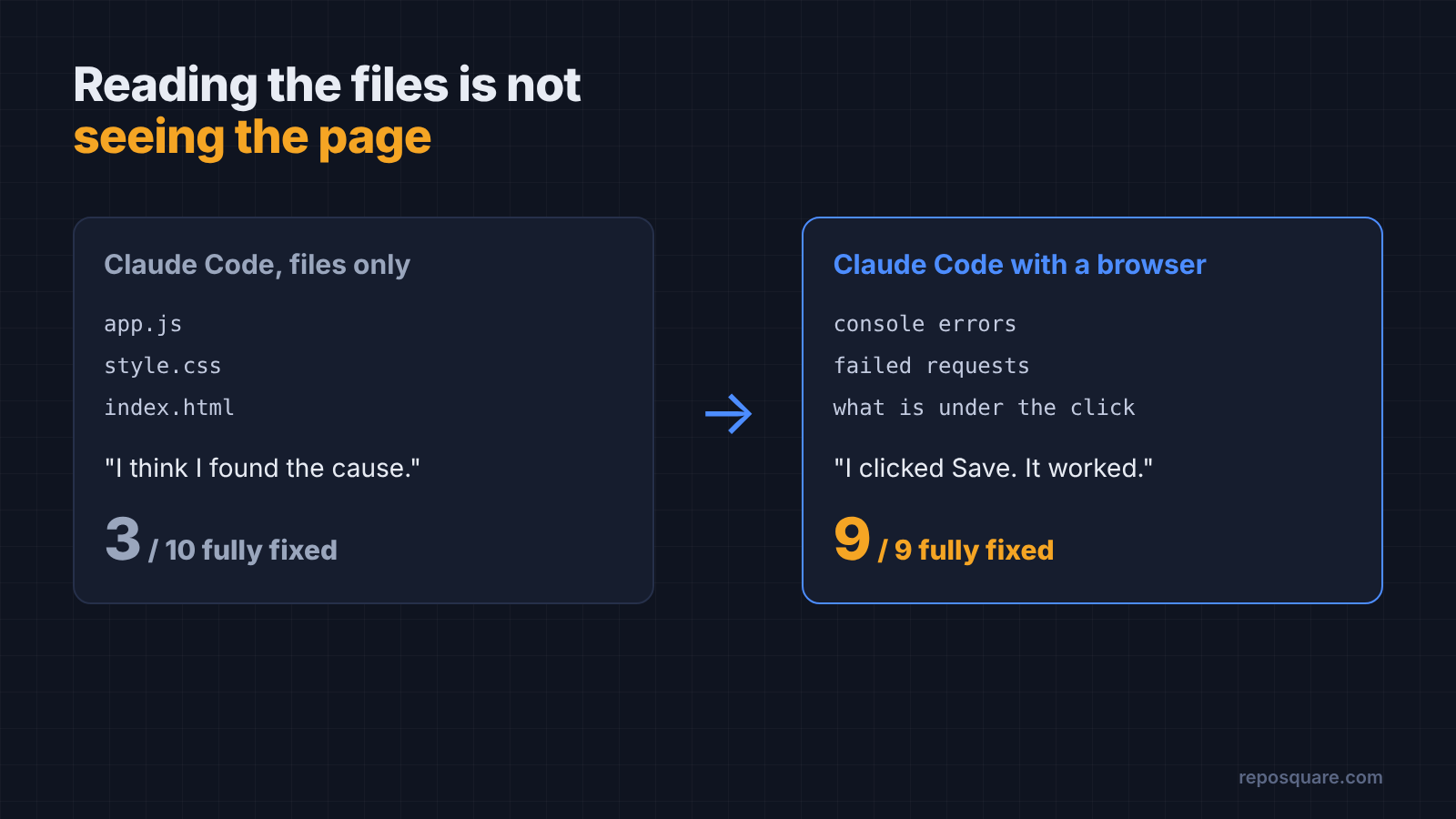
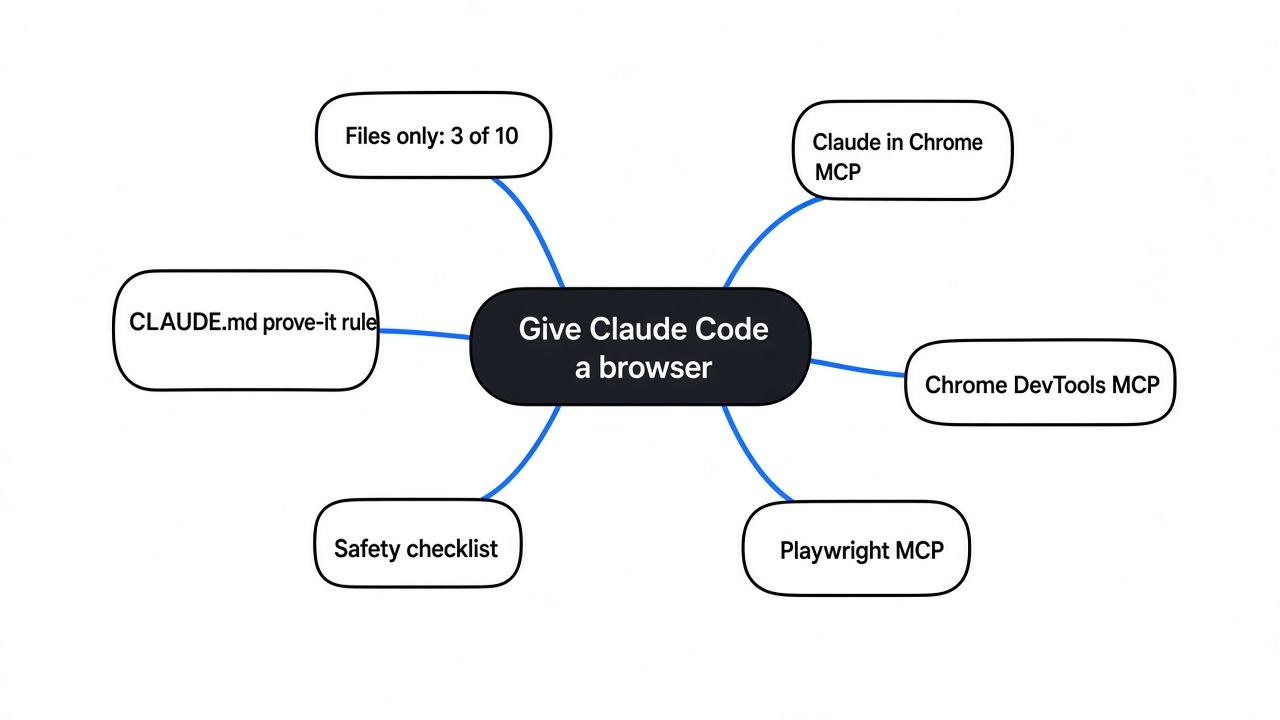
To give Claude Code access to your browser, connect a browser tool: Claude in Chrome (start with claude --chrome), the open source Chrome DevTools MCP server, Playwright MCP, or a small script it may run. In my tests, Claude Code fixed a broken page fully 3 times out of 10 without one, and 9 out of 9 with a browser.
You tell Claude Code the Save button does nothing. It reads your files, changes one line, and says it found the cause. It never opened the page.
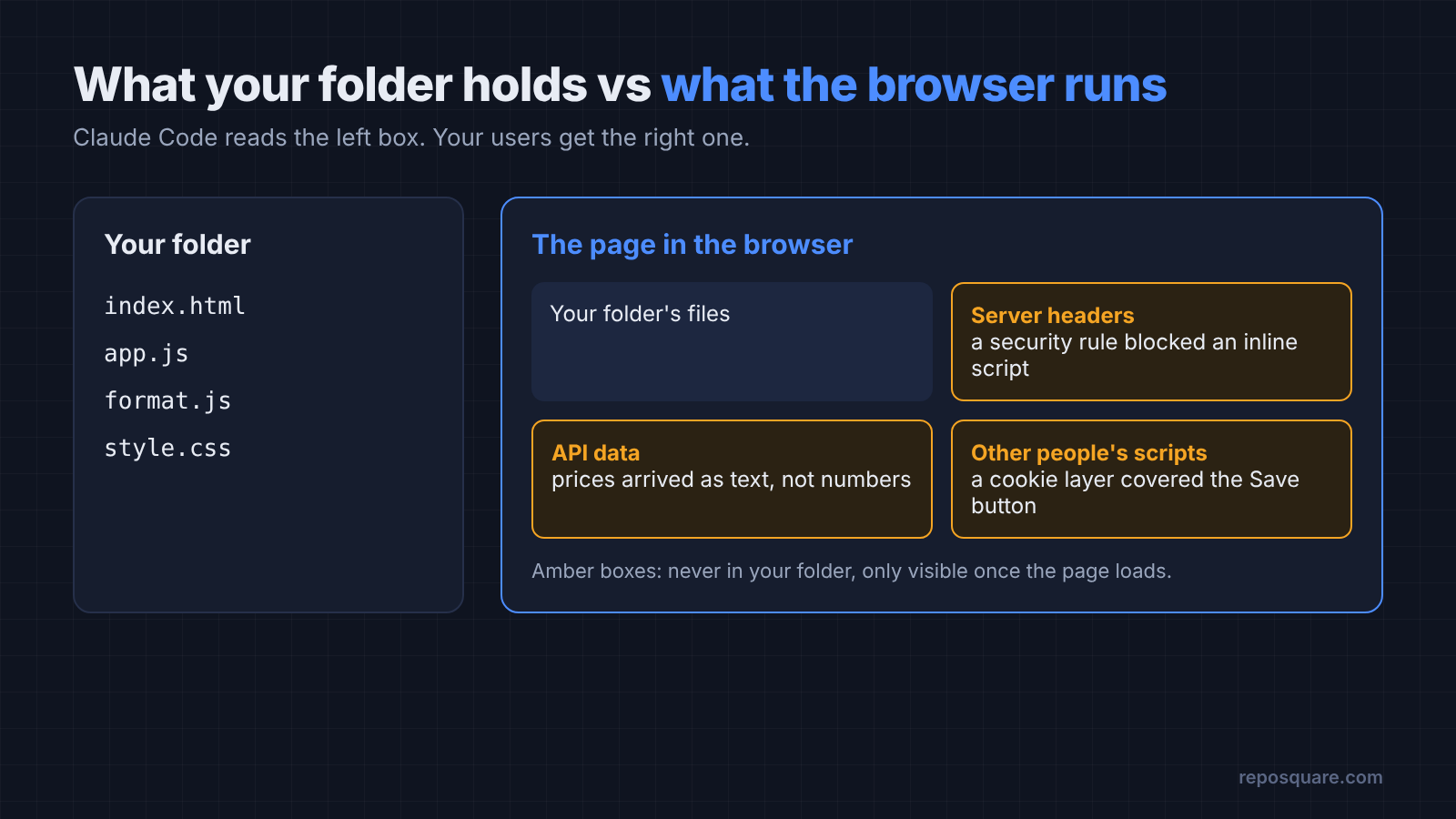
That gap is the whole problem. Claude Code reads the code in your folder, but your users run the page in a browser, and the browser gets more than your folder holds.
Checked in October 2026 against Claude Code 2.1.314, chrome-devtools-mcp 1.12.0 and the Claude in Chrome docs.
So this post gives you two things: a way to let Claude Code look at the real page, and one line that makes it prove the fix worked. The thread is simple. An agent that cannot see the page is guessing.
Why can’t Claude Code see what is wrong on my page?
Your folder is only part of what the browser runs. Claude Code starts with your files and a text terminal, so anything that only exists once the page loads is invisible to it.
Think of a recipe and the meal. The recipe is your code. The meal is what the browser actually serves.
That meal has more on the plate. Your files, plus whatever the server adds, plus data from an API (the server address your page asks for data), plus scripts from other companies, like a cookie banner.
Any of those extras can break the page, and quietly. A server can send a security header (a rule attached to the page that tells the browser what it may run). A cookie script can lay an invisible sheet over the page that eats every click.
None of that shows up when you read the files.
The browser shows these problems in two places. The console (the error log every browser keeps for each page) lists the scripts that failed. The network list shows every file and request the page made, and which ones came back broken.
Claude Code can read both, but only if you give it something that opens the page.
What happened when I tested it?
Without a way to load the page, Claude Code fixed it fully 3 times out of 10. With a real browser, 9 out of 9. The test was small, and the pattern was hard to miss.
I built a tiny shopping cart page with four faults hidden in it. The script asked for a file with the wrong capital letter (the server treats Format.js and format.js as different files). Prices came from the API as text, so the total broke.
The other two faults lived outside the folder. A cookie script laid an invisible full-screen layer over the Save button. And in the hardest version, the server’s security header blocked a small script inside the page, so the page asked a broken address for its cart.
I gave Claude Code (the Sonnet model, a fresh session every run) the same bug report each time: the cart shows no items and Save does nothing, fix every cause. Then a separate checker opened the page in a real browser, counted the items, checked the total, and clicked Save.
Each version of the page added harder faults. I ran it three ways:
- Read files only: Claude Code could read and edit the folder, nothing else.
- Files plus curl: it could also fetch pages and API answers as raw text with
curl(a terminal command that downloads a web address). - Files plus a browser: it could also run a 30-line script that opens the page in headless Chromium (the open source core of Chrome, running with no window), clicks a button, and prints the console errors, failed requests and the text on screen.
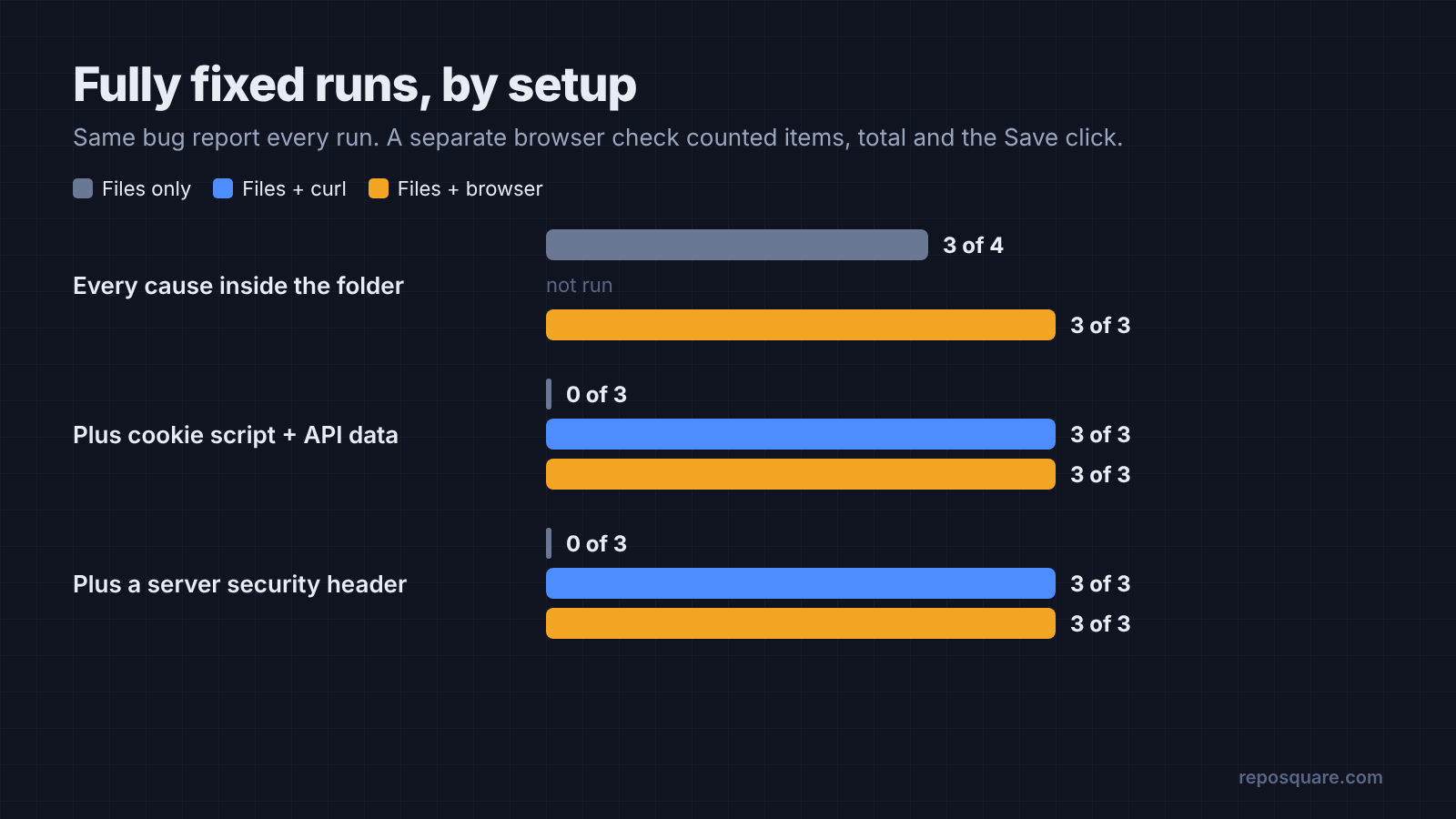
| Page version | Read files only | Files plus curl | Files plus a browser |
|---|---|---|---|
| Every cause is inside the folder | 3 of 4 fully fixed | not run | 3 of 3 |
| Plus a cookie script and API data it cannot read | 0 of 3 | 3 of 3 | 3 of 3 |
| Plus a server security header | 0 of 3 | 3 of 3 | 3 of 3 |
Were the read-only runs careless? No. In the two harder versions, all six fixed the wrong file name and said a second cause might remain that they could not check.
They were right. They had no way to look.
The easy version is the useful warning. One run read every file, fixed two of the three faults, missed the invisible layer, and stopped.
On a page with no outside parts, reading is often enough. Often is not always.
The catch: this is one toy page, one model and a small number of runs per setup. Treat the numbers as a pattern, not a benchmark.
Is curl enough, or do I need a real browser?
curl fixed as many pages as the browser did, but it never once proved the fix. The difference is not finding the bug. It is checking the result.
curl got the agent most of the way. It fetched the cookie script and read that it covers the page, then fetched the API and saw that prices are text. It even read the security header in the raw response and worked out which script it blocked.
Then every curl run ended with some version of “I haven’t loaded the page in a browser, so none of this is tested.” All six. They were right every time, but you would not have known that without testing it yourself.
Every browser run ended the other way. “The cart shows three items, the total is $37.50, clicking Save sends the request.” It had clicked the button and watched what happened, 9 times out of 9. Every one of those runs also opened the page before touching a single file.
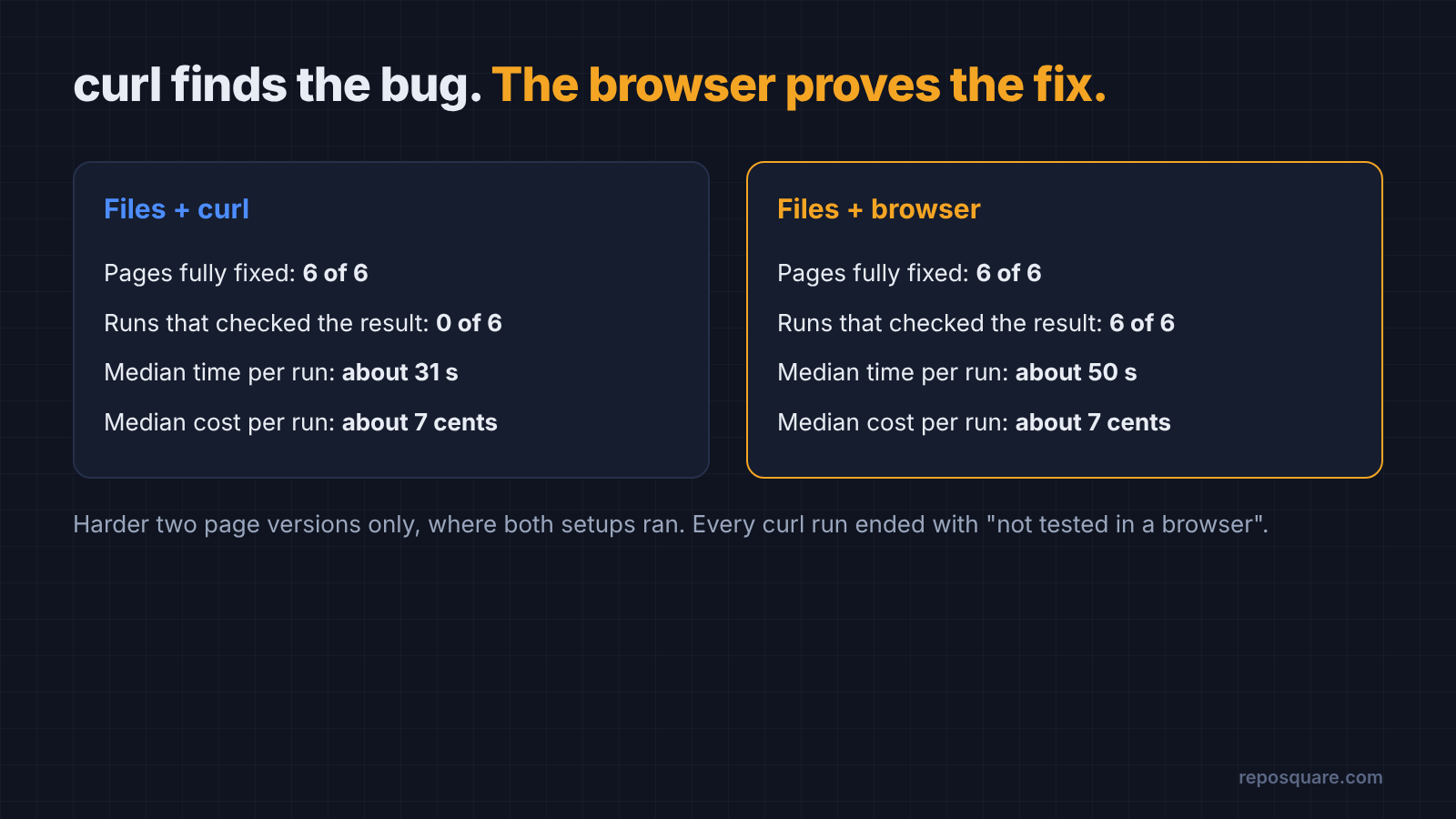
The browser costs a little. The median run took about 50 seconds instead of about 30, and used more tokens (the chunks of text the model reads and writes, which you pay for). The median cost per run was about 7 cents in both cases, because most of the extra text was cached, which is cheaper.
So should you skip the browser? There is a fair case for curl: it needs no setup, it is fast, and for API bugs it shows you everything. But a fix nobody checked is still a guess, and the browser is what turns it into an answer.
What are the ways to give Claude Code a browser?
There are four common ways, from built-in to do it yourself. Pick by one question: do you want Claude Code to use your real, signed-in browser, or a separate clean one?
Claude in Chrome is the built-in option. You start Claude Code with claude --chrome, and it drives a visible Chrome or Edge window through the Claude in Chrome extension. It shares your logins, so it can open apps you are signed into.
There are two limits. It needs a direct Anthropic plan (Pro, Max, Team or Enterprise), and it does not work in WSL (Windows Subsystem for Linux).
Chrome DevTools MCP is the open source option from the Chrome DevTools team. MCP (Model Context Protocol, a standard plug that lets an AI app use outside tools) means Claude Code gains tools without you writing code.
This one reads console messages with source-mapped stack traces (errors that point at your original source lines), lists network requests, takes screenshots and records performance traces. It is free under the Apache-2.0 license.
Playwright MCP is Microsoft’s open source option. Instead of screenshots, it hands the agent the page’s accessibility tree (the structured list of buttons, links and text that screen readers use), which is compact and easy for a model to act on.
A small script is what I used in the test. You write a few lines with Playwright (a library for driving browsers from code; how it compares, and when an agent only needs the page text). Claude Code may run only that command, and the script prints exactly what you want the agent to see, with no server to install and nothing else exposed.
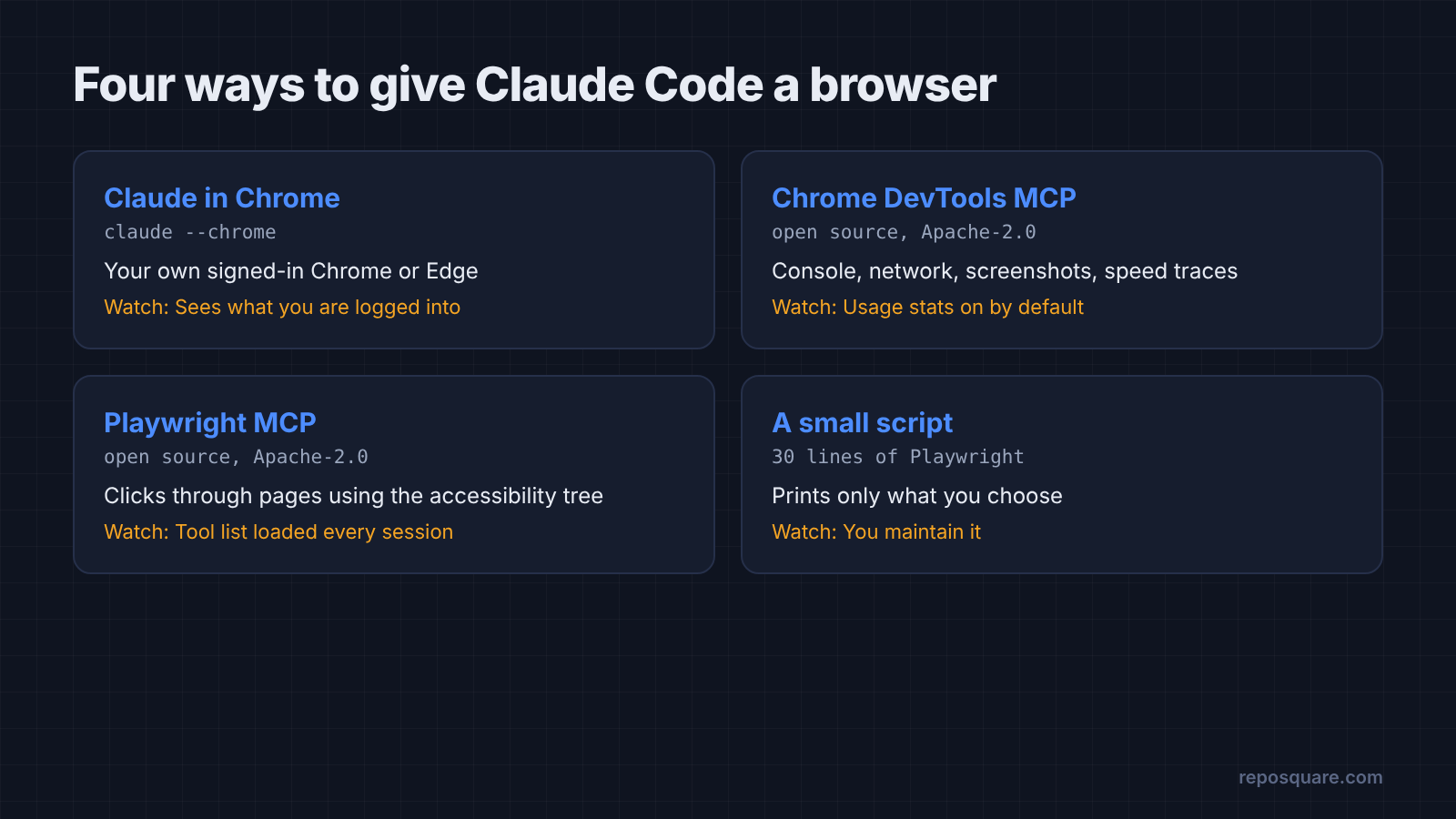
| Option | Which browser | Best for | Watch out for |
|---|---|---|---|
| Claude in Chrome | Your own Chrome or Edge, signed in | Apps behind a login, visible testing | Sees whatever you are logged into |
| Chrome DevTools MCP | A Chrome it starts, or one you connect | Console errors, network, speed checks | Usage statistics are on by default |
| Playwright MCP | A browser Playwright starts | Clicking through flows step by step | Another tool list loaded into every session |
| Small script | Headless Chromium | One focused check you control | You maintain the script |
How do I set up Chrome DevTools MCP in Claude Code?
One command adds it, and one prompt checks it works. You need Node.js (the LTS version) and a current Chrome.
- Add the server, with usage statistics turned off:
claude mcp add chrome-devtools -- npx -y chrome-devtools-mcp@latest --no-usage-statistics
- Start Claude Code and type
/mcpto see thatchrome-devtoolsis connected. - Give it a first job:
Open http://localhost:3000, click Save, and list any console errors.
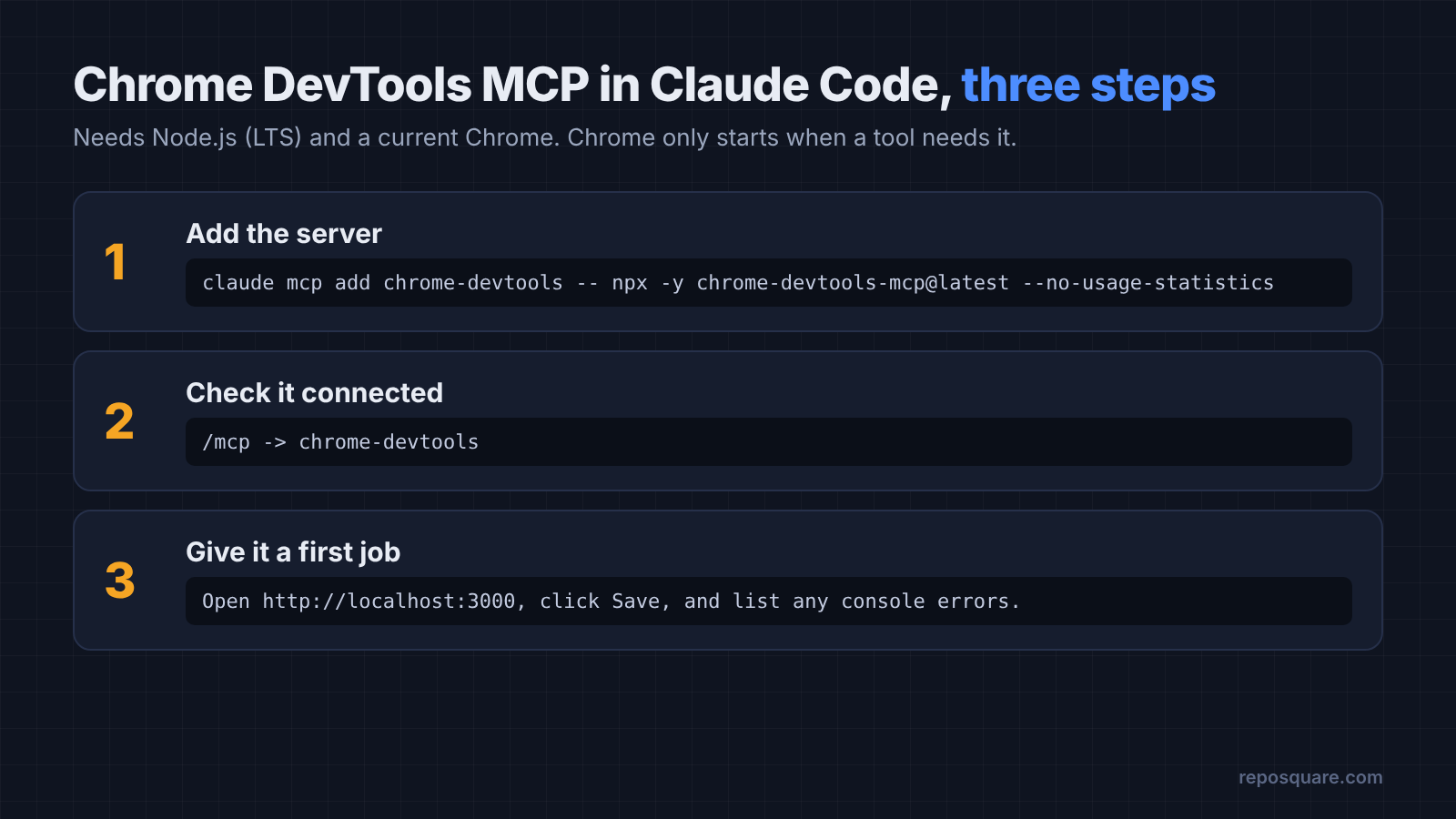
The server only starts Chrome when Claude Code first needs a browser, so an idle session does not open anything. For a throwaway browser profile, the server has an --isolated option, and --headless runs it with no window.
If you prefer plugins, the Chrome team also ships it as a Claude Code plugin with skills included: run /plugin marketplace add ChromeDevTools/chrome-devtools-mcp, then /plugin install chrome-devtools-mcp@chrome-devtools-plugins.
How do I make Claude Code check its own fix?
Tell it, in writing, that a UI fix is not done until it has looked. Having a browser is not enough. The agent has to use it after the edit, not only before.
Put one rule in your CLAUDE.md (the file of project rules Claude Code reads at the start of every session; here is what a good one looks like):
After any change to the UI, open the page in the browser, repeat the exact action from the bug report, and tell me what you saw. Never say "fixed" without that check.
In my test, every browser run did this on its own, partly because the bug report described a click. Real bug reports are vaguer, so write the rule down.
If you want the small-script route, this is the shape of what I used. It prints console errors, failed requests, and which element is really on top of the button you meant to click:
// see.mjs  usage: node see.mjs <url> [css selector to click]
import { chromium } from 'playwright';
const [url, sel] = process.argv.slice(2);
const browser = await chromium.launch();
const page = await browser.newPage();
const log = [];
page.on('console', m => log.push(`console.${m.type()}: ${m.text()}`));
page.on('pageerror', e => log.push(`uncaught error: ${e.message}`));
page.on('response', r => { if (r.status() >= 400) log.push(`HTTP ${r.status()}: ${r.url()}`); });
await page.goto(url, { waitUntil: 'networkidle' });
if (sel) {
  const b = await page.locator(sel).boundingBox();
  const x = b.x + b.width / 2, y = b.y + b.height / 2;
  const top = await page.evaluate(([x, y]) => {
    const el = document.elementFromPoint(x, y);
    return el ? el.tagName + (el.id ? '#' + el.id : '') : 'nothing';
  }, [x, y]);
  log.push(`on top of ${sel}: ${top}`);
  await page.mouse.click(x, y);
  await page.waitForTimeout(800);
}
log.push('--- visible text ---', await page.innerText('body'));
console.log(log.join('\n'));
await browser.close();
Then allow only that command, so the agent gets eyes and nothing else: start Claude Code with --allowedTools "Bash(node see.mjs:*)" or add the same rule to your permissions. The same allow-list idea is how you stop Claude Code from deleting files it should not touch.
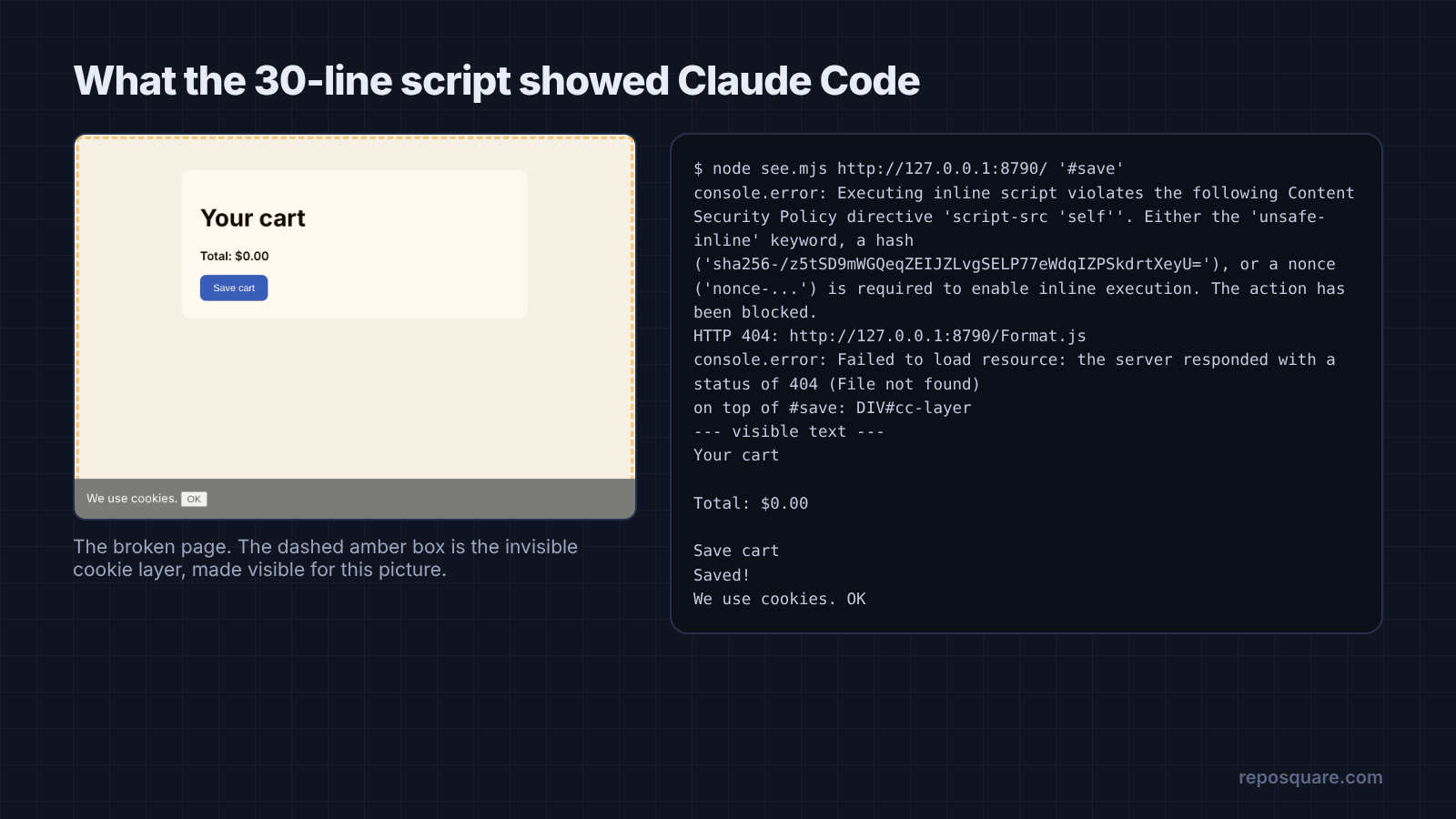
That “on top of” line is what caught the invisible layer. The button looked fine in the code. In the browser, a cookie layer was the thing actually being clicked.
What should I watch out for?
A browser tool can see everything that browser can see. That is the point, and it is also the risk.
Chrome DevTools MCP warns that it exposes the browser’s content to the AI app, so keep personal and sensitive data out of that browser. Claude in Chrome shares your real logins, which is great for testing your own app and a bad idea on a page full of private email.
A separate test profile solves most of this. If you want to know what Claude Code itself sends out, this test of its traffic covers that side.
Each tool you add also loads its tool list into the session, and that text costs tokens on every request. Leaving Claude in Chrome on by default keeps its tools loaded in every session, which raises context use. Turn browser tools on for front-end work, off for the rest.
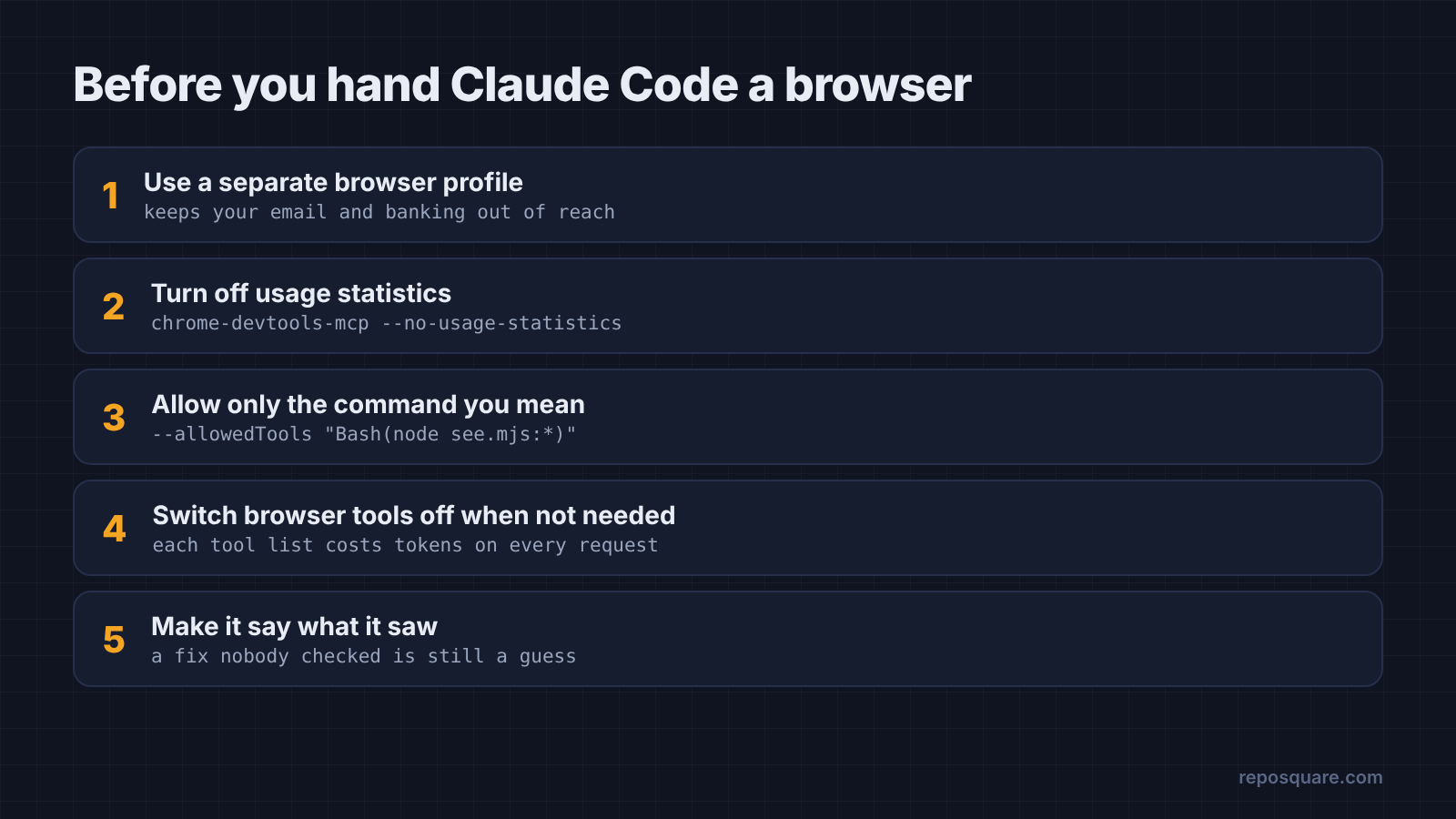
And remember the easy version of the test. When every cause lives in your folder, reading the code often works. Reach for the browser when the page talks to anything you did not write.
Let it look. Then make it say what it saw.
Common questions about giving Claude Code browser access
Can Claude Code see my browser console?
Not by default. It can read the console once you connect a browser tool, such as Claude in Chrome, Chrome DevTools MCP, Playwright MCP, or a script that prints the console for it.
Is Chrome DevTools MCP free?
Yes. It is open source under the Apache-2.0 license and runs on your own machine with Node.js and Chrome. It sends usage statistics to Google by default, which you can turn off with --no-usage-statistics.
What is the difference between Claude in Chrome and Chrome DevTools MCP?
Claude in Chrome drives your own signed-in Chrome or Edge through an extension and needs a direct Anthropic plan. Chrome DevTools MCP starts or connects to a Chrome instance and adds DevTools features like network lists and performance traces.
Do I need a browser tool if Claude Code can use curl?
curl helps a lot for reading API answers and scripts, and in my tests it found every fault. It cannot click the page or show what a user sees, so it cannot prove the fix worked. A browser can.