
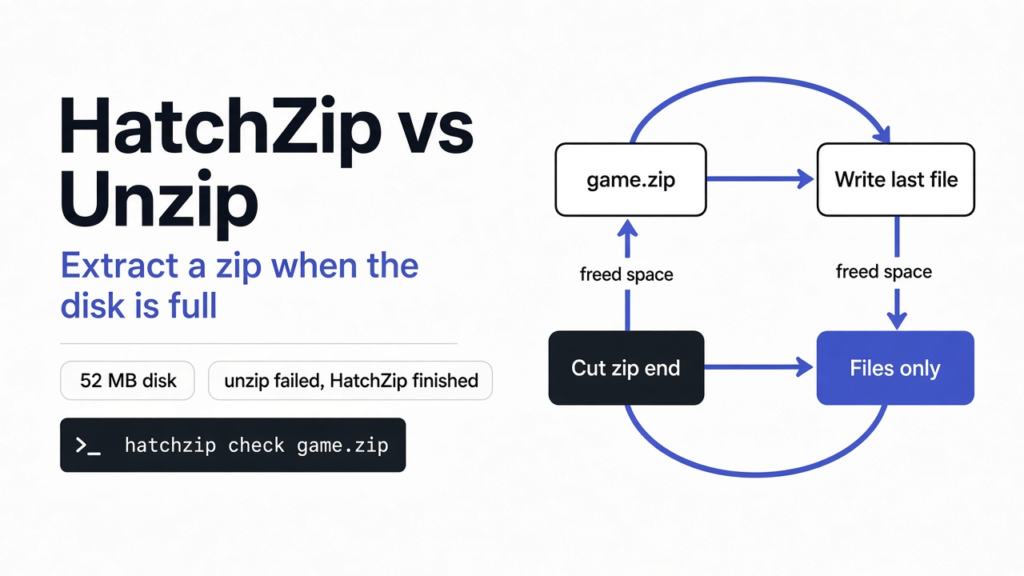

HatchZip vs unzip comes down to free space, not speed. A normal extractor such as unzip keeps the zip on disk until it finishes, so the disk has to hold the archive and every unpacked file at the same time. HatchZip is a free, open source extractor that unpacks the archive from its end and cuts each finished part off the zip as it goes, so it only needs room for the files plus one piece at a time. I tested both on 24 October 2026 with HatchZip 0.1.2 and Info-ZIP UnZip 6.00 on Debian 13. On a nearly full 52 MB disk, unzip stopped with a write error and left a truncated file. HatchZip finished, removed the zip, and all four files matched the originals byte for byte.
That result has one catch you will hit on the first try: HatchZip keeps a 2 GB safety reserve by default, so on a small or almost full disk its own check refuses until you lower that reserve. Below are the exact commands and output, where the trick stops working (solid 7z archives, .tar.gz on FAT32 or exFAT), and when plain unzip is still the better call.
How HatchZip Unpacks a Zip From the End
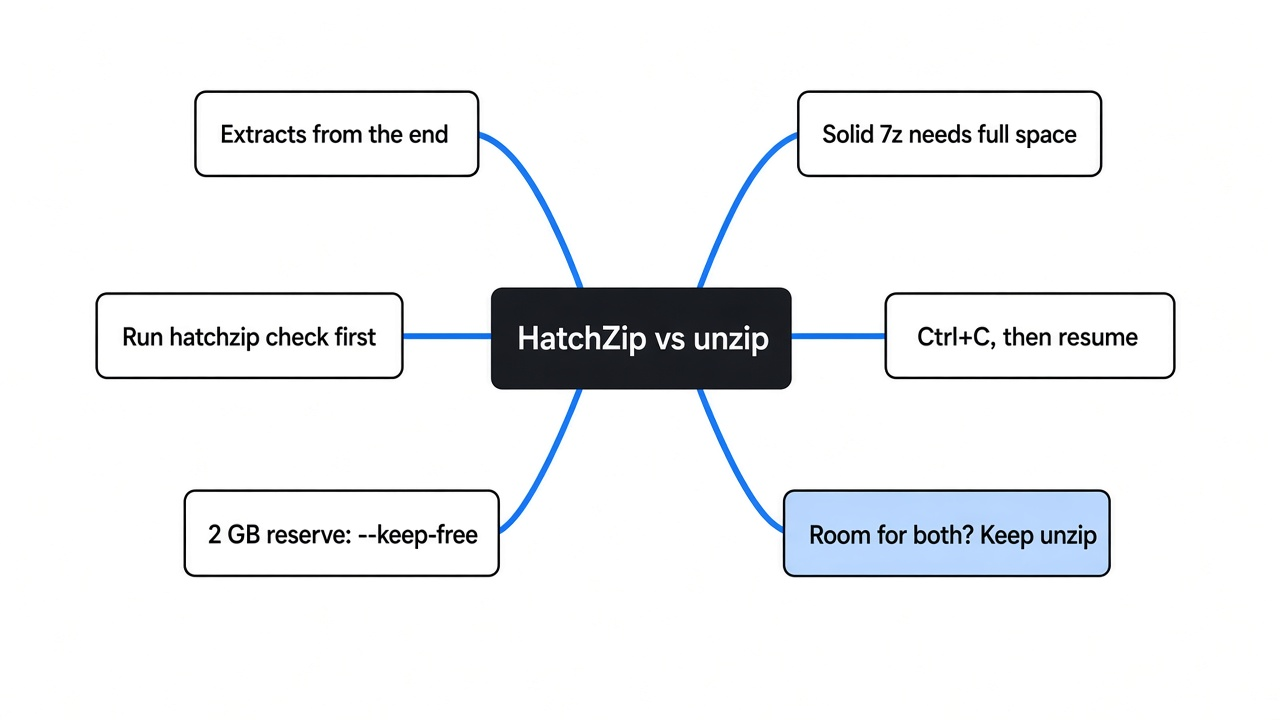
A zip file keeps its index, the list of where each file starts, at the very end. HatchZip copies that index to a small side file next to the archive, then works backward. It writes the last file in the archive, checks its CRC-32 checksum, forces it to the physical disk, and only then shortens the zip to where that file began. The bytes it just cut become free space for the next file.
Working from the end matters because every operating system and file system can shorten a file from the end. Removing bytes from the middle needs “hole punching”, which FAT32 and exFAT do not support. The how it works notes in the repository describe the exact order of writes. Files are processed in batches that fit in the space free at that moment, minus the reserve, and each batch is committed to a journal before the archive is truncated.

The same idea covers more than zip. The project reads ZIP and ZIP64 (including self-extracting .exe zips), 7z, plain tar, .tar.gz and split archives named .001, .002 and so on. RAR is listed as planned, not supported. My tests below cover zip and 7z; tar and split sets were not part of them.
HatchZip vs Unzip on a Nearly Full 52 MB Disk
To stand in for an almost full laptop, I mounted a 52 MB RAM disk and made a 33.6 MB zip from four 8.4 MB files of random data. Random data does not compress, so I stored the files without compression and the zip ends up the same size as its contents. With the zip copied onto the small disk, 21.0 MB was left free. Unzip needs 33.6 MB for the files on top of the zip, so it should run out of room partway through. It did, at the third file:
# four 8.4 MB files of random data, stored in a 33.6 MB zip
$ for i in 1 2 3 4; do head -c 8388608 /dev/urandom > level$i.pak; done
$ zip -0 -q game.zip level*.pak
# a 52 MB RAM disk stands in for an almost full laptop
$ sudo mount -t tmpfs -o size=52M tmpfs /mnt/hztiny
$ cp game.zip /mnt/hztiny/ && cd /mnt/hztiny
$ df -h .
Filesystem      Size  Used Avail Use% Mounted on
tmpfs            52M   33M   20M  62% /mnt/hztiny
$ unzip game.zip -d unz
Archive:  game.zip
 extracting: unz/level1.pak
 extracting: unz/level2.pak
 extracting: unz/level3.pak

unz/level3.pak:  write error (disk full?).  Continue? (y/n/^C)
warning:  unz/level3.pak is probably truncated
# exit status 50Unzip exits with status 50 (disk full) and leaves level3.pak at 4.2 MB instead of 8.4 MB. Two files made it out whole, one is cut short, and the disk is at 100%. You now have to delete the partial output before you can do anything else.
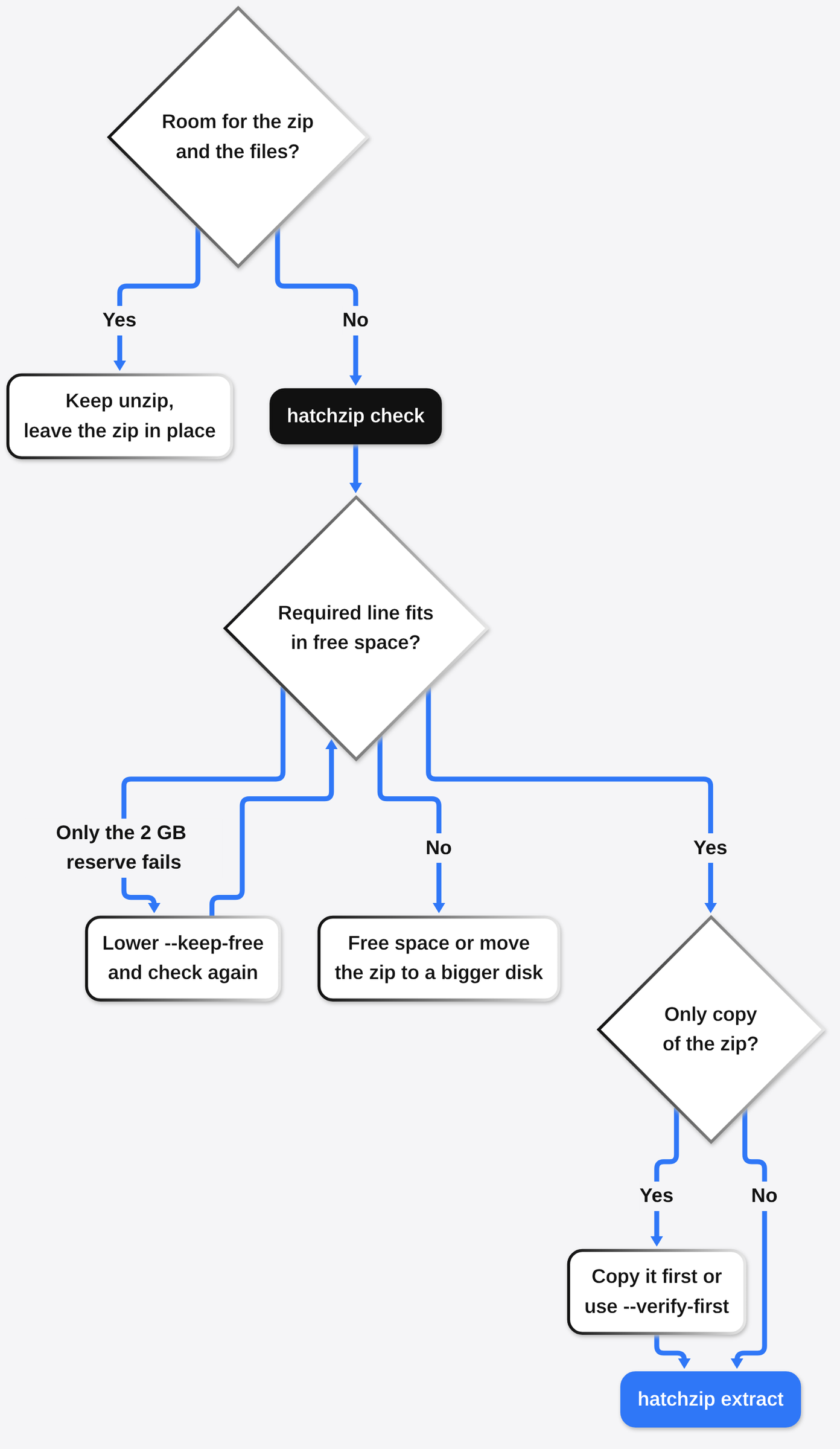
After deleting that output, I asked HatchZip for its space plan. hatchzip check reads the archive index and the free space and changes nothing:
$ hatchzip check game.zip
game.zip  33.6 MB zip, 33.6 MB uncompressed in 4 entries
  available                    21.0 MB
  standard extraction needs    33.6 MB
  required                     8.4 MB (+2.0 GB reserved)
Insufficient disk space: 2.0 GB more is required. Free up space or lower --keep-free.
# exit status 3: nothing was changedThis is where most people would give up on the tool. The “required” line says HatchZip only needs 8.4 MB, the size of one file, and 21.0 MB is free. The refusal comes from the reserve: --keep-free is space HatchZip will never use, so the disk never fills to zero, and the default is 2 GB. On a disk that is almost full, that reserve is bigger than the whole problem. Lowering it fixes the plan:
$ hatchzip check game.zip --keep-free 1MB
game.zip  33.6 MB zip, 33.6 MB uncompressed in 4 entries
  available                    21.0 MB
  standard extraction needs    33.6 MB
  required                     8.4 MB (+1.0 MB reserved)
  available after              21.0 MB
$ hatchzip extract game.zip --keep-free 1MB -o ./game -y
game.zip  33.6 MB zip, 33.6 MB uncompressed in 4 entries
  available                    21.0 MB
  standard extraction needs    33.6 MB
  required                     8.4 MB (+1.0 MB reserved)
  available after              21.0 MB
Extraction complete: 4 entries in /mnt/hztiny/game. The archive was removed.
$ cd game && sha256sum -c ~/orig.sha
level1.pak: OK
level2.pak: OK
level3.pak: OK
level4.pak: OKThe zip is gone, the four files are in ./game, and the SHA-256 hashes match the files I started with. I set --keep-free 1MB only because this test disk was 52 MB. On a real laptop I would keep a few hundred megabytes free, because the browser, logs and the desktop also need room on a full disk.
| What I measured | unzip 6.00 | HatchZip 0.1.2 |
|---|---|---|
| Free space it needs on top of the zip | All unpacked files (33.6 MB) | The largest file plus the reserve (8.4 MB + reserve) |
| 52 MB disk, 21.0 MB free, 33.6 MB zip | Failed at file 3, exit 50, truncated file | Finished with --keep-free 1MB, hashes match |
| Same test with default settings | Failed | Refused before touching the zip (exit 3, 2 GB reserve) |
| Left on disk at the end | Zip plus files | Files only, zip removed |
| 1.26 GB stored zip on ext4, 3 runs | 6.16 to 6.19 s | 1.40 to 2.18 s |
| If stopped halfway | Start again, clean up partial files | Run the same command to resume |
The speed row is from one machine, with stored (uncompressed) data and a warm cache, so treat it as a sign that HatchZip is not slower rather than a benchmark. Disk speed decides most of it, and if you want to measure your own disk properly, the VPS benchmark guide covers fio with direct I/O. The reason to switch is the space row, not the timer.
Why Unzip Needs Room for the Zip and the Files
Unzip reads the archive and writes new files beside it. Deleting the zip is a separate step that you do afterward. Until then the disk holds the packed copy and the unpacked copy at once. The HatchZip README gives the large version of the same math: a 180 GB game download that unpacks to 200 GB needs about 380 GB free with WinRAR, 7-Zip or unzip, and a little over 200 GB with HatchZip.
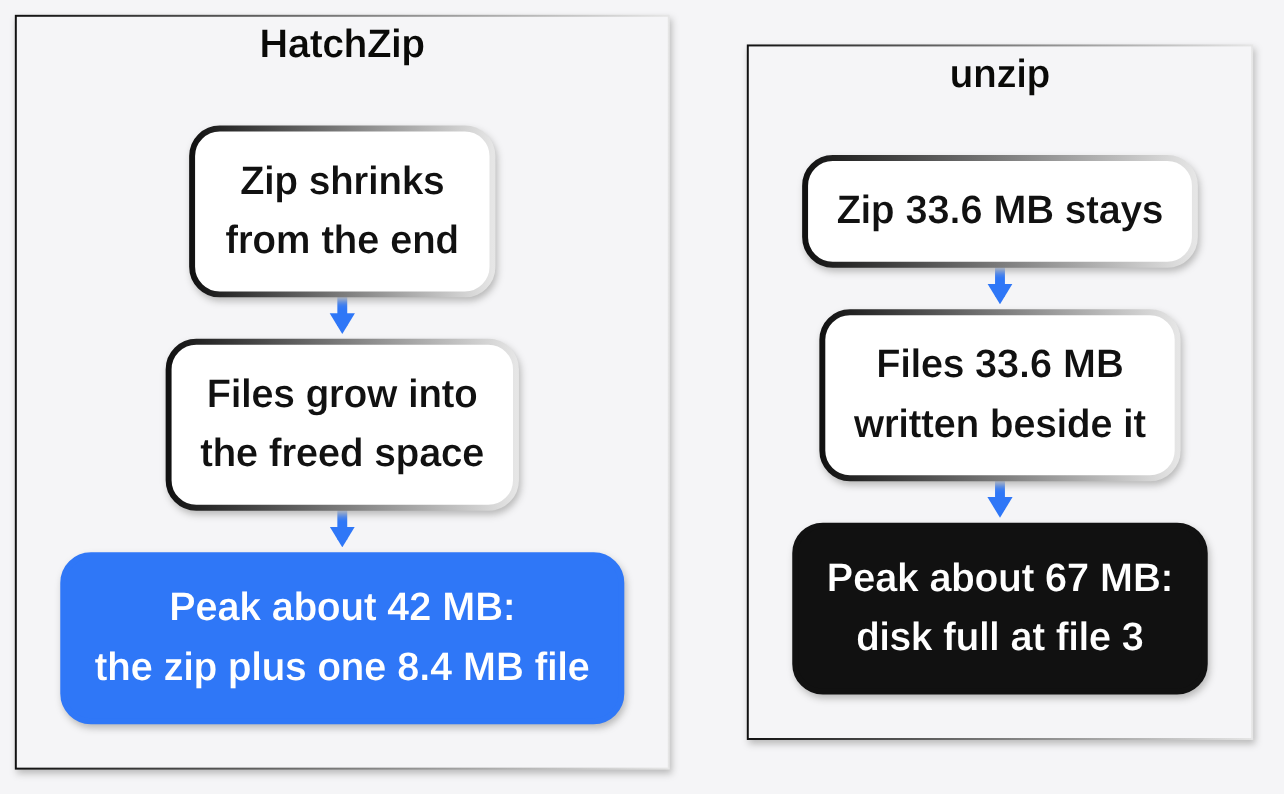
HatchZip does not create space from nothing. It still needs room for the largest single unit it cannot free yet, which is one file for zip and tar. If one file inside the archive is 40 GB and you have 10 GB free, the check will say so before anything is deleted. On file systems that can punch holes (ext4, XFS, btrfs and tmpfs according to the README), a large stored or deflated file in a zip can release its archive bytes every 256 MiB while it is extracted, so the required figure can come in below the largest file. Run hatchzip check and read the “required” line rather than guessing.
If the disk is full because of something you can delete, deleting it is still the better first step. On a developer machine, coding tools are a common culprit, and freeing disk space from Claude Code can give back gigabytes of old session data before you reach for a special extractor.
When a 7z Archive Loses the Space Saving
7z adds a wrinkle. 7-Zip packs files into “solid blocks”, and a solid block has to be decoded from its start, so HatchZip can only free it once the whole block is out. With 7-Zip’s default settings, a small archive is often one single block, which means the space saving disappears. I packed the same four files twice with 7-Zip 25.01, once with the defaults and once with solid mode off (-ms=off), and ran the check on the same 52 MB disk:
$ 7z a solid.7z level*.pak            # 7-Zip defaults: one solid block
$ 7z a -ms=off nonsolid.7z level*.pak  # solid mode off
$ hatchzip check solid.7z --keep-free 1MB
solid.7z  33.6 MB 7z, 33.6 MB uncompressed in 4 entries
  available                    21.0 MB
  standard extraction needs    33.6 MB
  required                     33.6 MB (+1.0 MB reserved)
Insufficient disk space: 13.6 MB more is required. Free up space or lower --keep-free.
Most of the required space is one solid block, which can only be released after it is fully extracted. Archives created with smaller solid blocks require much less space.
$ hatchzip check nonsolid.7z --keep-free 1MB
nonsolid.7z  33.6 MB 7z, 33.6 MB uncompressed in 4 entries
  available                    21.0 MB
  standard extraction needs    33.6 MB
  required                     8.4 MB (+1.0 MB reserved)
available after 21.0 MBThe solid archive needs the full 33.6 MB and HatchZip says why. The non-solid one needs 8.4 MB, the same as the zip. If you make the archive yourself and expect to unpack it on a tight disk, turn solid mode off or use smaller blocks (the README tested -ms=20m, which made 10 blocks). If someone else made it, the check tells you which case you have before anything changes.
.tar.gz has its own limit. It is one compressed stream that can only be decoded from the front, so HatchZip frees space by punching holes behind the decoder. FAT32 and exFAT cannot punch holes, so on many USB sticks a .tar.gz needs room for the archive and every file at once, like a normal extractor. Zip and plain tar still work on those drives, because they only need truncation from the end.
Installing HatchZip and the Commands Worth Knowing
The project ships a desktop app for Windows, macOS and Linux and a command-line tool. On Windows the installer adds a right-click “Extract here” entry. The Windows and macOS builds are not code-signed yet, so Windows shows a “Windows protected your PC” prompt (More info, then Run anyway). On Linux and macOS the command-line install script downloads the release for your machine, checks its SHA-256 checksum and installs hatchzip and the short alias hz into ~/.local/bin without root. Rust users can run cargo install hatchzip instead. Here is the install and the two read-only commands on the box:
$ curl -fsSL https://raw.githubusercontent.com/xevrion/hatchzip/main/install.sh | sh
Downloading HatchZip for linux x86_64
hatchzip 0.1.2 installed. Run it as hatchzip or hz; man hatchzip has the manual.
$ hatchzip --version
hatchzip 0.1.2
$ hatchzip list game.zip
      Size  Name
    8.4 MB  level1.pak
    8.4 MB  level2.pak
    8.4 MB  level3.pak
    8.4 MB  level4.pak
4 entries, 33.6 MB uncompressed, 33.6 MB zip archive
$ hatchzip test game.zip
Test passed: 4 entries verified.list and test change nothing, which makes them a safe first look at a download. The flags that matter for the first real run:
--keep-free <size>sets the reserve, written as a size such as500MBor10GB. Default 2 GB.--verify-firstreads the whole archive and checks every checksum before deleting anything. Slower, but use it when you cannot download the file again.-o <dir>picks the output folder. It must be empty or not exist yet. By default HatchZip makes a folder named after the archive.-yskips the confirmation prompt. It is required when not running in a terminal, and worth leaving off the first time you try a precious download.
Exit codes are scriptable: 0 is success, 3 means not enough space and nothing was changed, 4 means the archive is damaged and nothing was deleted, and 130 means you paused it with Ctrl+C.
What Happens If You Stop HatchZip Halfway
Unzip leaves a truncated file when it dies. HatchZip is built so a stop leaves either a finished file or its bytes still inside the archive. I extracted a 1.26 GB zip of six 200 MB files on ext4, sent it the Ctrl+C signal (SIGINT) 0.6 seconds in, and then ran the same command again:
$ hatchzip extract run.zip -o out -y --keep-free 1GB
run.zip  1.3 GB zip, 1.3 GB uncompressed in 6 entries
  available                    40.3 GB
  standard extraction needs    1.3 GB
  required                     209.7 MB (+1.0 GB reserved)
  available after              40.3 GB
# SIGINT (the Ctrl+C signal) sent 0.6 s in
Pausing after the current batch. Partly written files are redone on resume. Press Ctrl+C again to exit immediately.
Extraction paused. Run the same command to resume.
# exit status 130
$ ls run.zip*
run.zip  run.zip.hatchzip  run.zip.hatchzip-tail
$ hatchzip extract run.zip -o out -y --keep-free 1GB
run.zip  1.3 GB zip, 1.3 GB uncompressed in 6 entries
  resuming: 1.3 GB of 1.3 GB remaining
  available                    40.3 GB
  standard extraction needs    1.3 GB
  required                     209.7 MB (+1.0 GB reserved)
  available after              40.3 GB
Extraction complete: 6 entries in /workspace/hz-test/big/out. The archive was removed.The first run paused, kept the zip intact and left the two progress files, run.zip.hatchzip and run.zip.hatchzip-tail. Do not delete those while an extraction is unfinished, because they hold the archive index, which may no longer be inside the archive itself. The second run resumed and finished, and all six files matched their original hashes. My pause landed before the first batch was committed, so this run shows a clean pause and resume rather than a resume from the middle of the archive. If you want to give up instead, hatchzip restore run.zip turns whatever is left into a normal zip again that 7-Zip, WinRAR or unzip can open.
When to Keep Using Unzip Instead
HatchZip deletes the archive as it extracts. That is the whole point, and it is also the risk. Plain unzip, 7-Zip or your file manager are still the better choice in several cases:
- You have room for the zip and the files. A normal extractor keeps the zip, so a bad extract does not cost you the download.
- The zip is your only copy and you have not run
--verify-firstor made a backup. If the download itself is damaged, the files before the damaged spot are extracted and that part of the archive is already gone. - The archive is RAR, or a native split zip (
.z01). Both are listed as planned. checksays the required space is the whole archive, as with my single-block 7z.- The file is a
.tar.gzon a FAT32 or exFAT drive and you do not have room for both copies.
For big files that are headed to a server rather than being unpacked locally, an archive may not be the right container at all. A Docker image, for example, can go straight to the host, and pushing a Docker image without a registry sends only the layers the server is missing.
Common questions about HatchZip
Is HatchZip free and open source?
Yes. HatchZip is dual licensed under MIT or Apache-2.0, your choice, and the source is on GitHub. The desktop installers and the command-line tool are free downloads. I tested release 0.1.2.
How much free space does HatchZip need?
About the size of the largest unit it can free at once, plus the --keep-free reserve. For zip and tar that unit is one file. For 7z it is one solid block. hatchzip check prints the exact “required” figure for your archive and your disk, and it changes nothing.
Why does hatchzip check say “Insufficient disk space” when the files fit?
Usually because of the default 2 GB reserve. In my test the files needed 8.4 MB and 21.0 MB was free, but the check asked for 2 GB more. Lower the reserve with --keep-free, for example --keep-free 500MB, and check again.
Does HatchZip work on exFAT or FAT32 USB drives?
Zip, 7z and plain tar archives work, because they only need the file to be shortened from the end, which every file system supports. A .tar.gz still extracts there but needs room for the archive and all files at once, since those drives cannot punch holes.
Can HatchZip open RAR files?
No. RAR is listed as planned in the README, along with native split zips named .z01. For those, use another extractor and make sure you have room for both the archive and the files.