
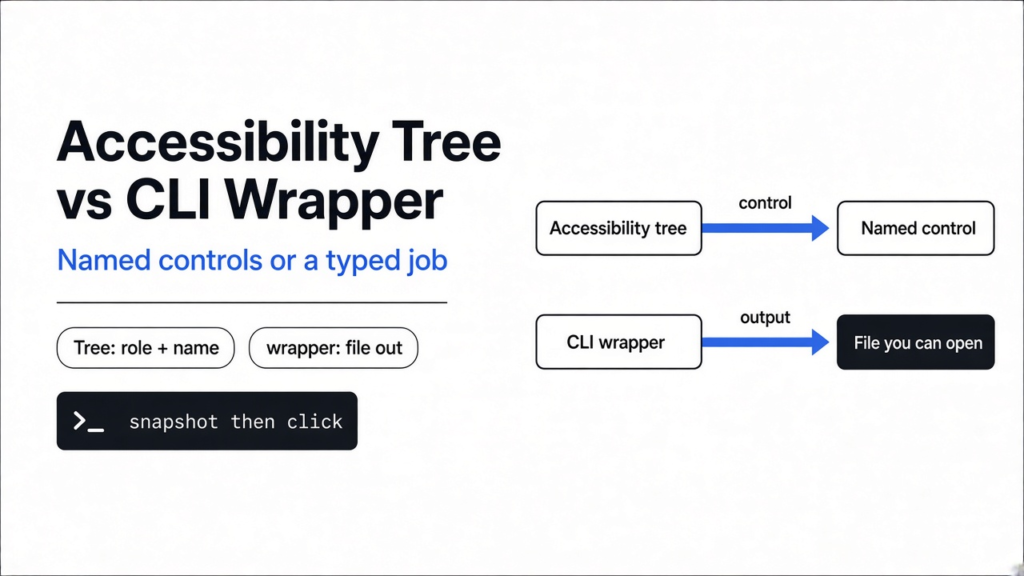

The Save button was right there, and the click landed on the title bar. That is the usual failure of screenshot computer use: a photo of the screen, then a guessed x and a y. The cleaner fork is accessibility tree vs CLI wrapper. An accessibility tree is the labeled outline the operating system already keeps for screen readers; an agent presses a control by name. A CLI wrapper is a typed command that claims to drive the real program and never opens the window at all.
Those two paths are not the same job. An accessibility tree answers “press the button named Save in this window.” A CLI wrapper answers “run the named job and hand me a file.” I ran agent-desktop 1.0.2 on Linux x86_64 as the tree path. The CLI-wrapper side of the fork is the one covered in CLI-Anything vs computer use. Checked against the agent-desktop npm package and the compiled platform guide on 1 November 2026.
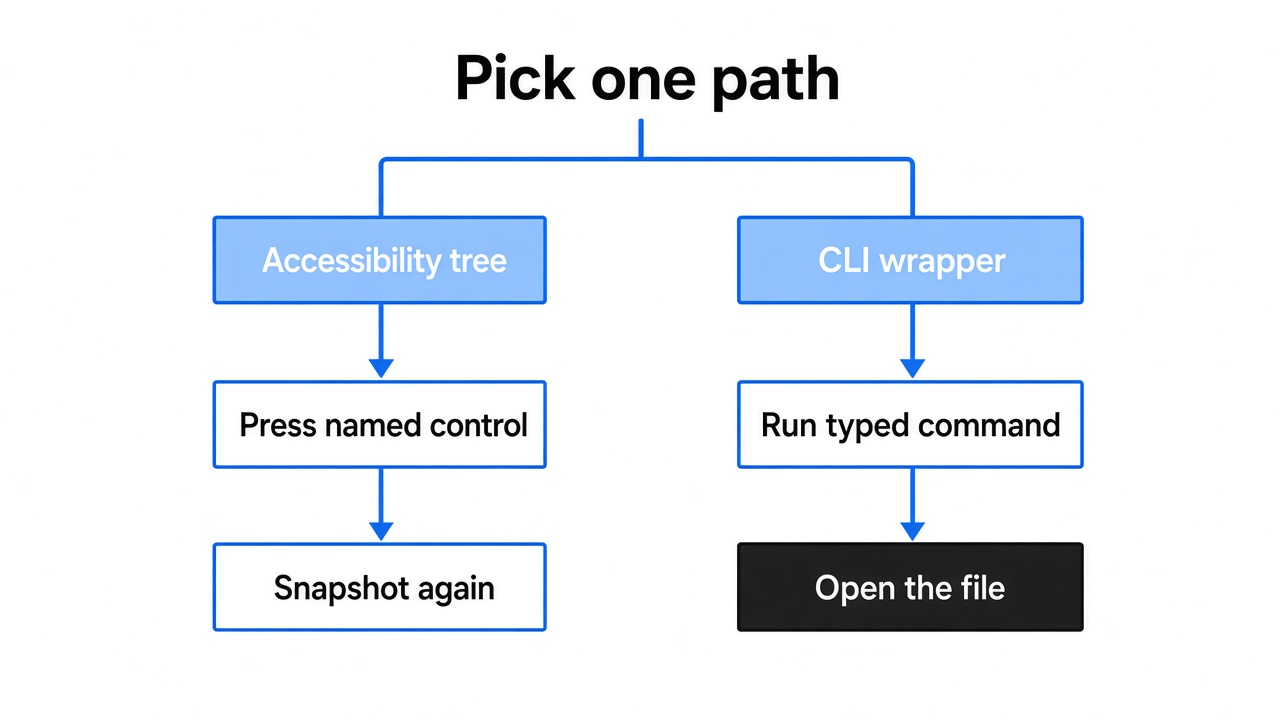
Short answer: use the accessibility tree when a native app has real named controls; use a CLI wrapper when an honest command already does the job and returns a file you can open.
What an accessibility tree gives an agent

An accessibility tree is the labeled outline of a window: each control has a kind and a name.
Before a program can click Save, it has to know Save exists as a control, not as a cluster of blue pixels. Every mainstream desktop already builds that outline for screen readers (the programs that speak a window out loud). The outline is what they read. agent-desktop reads the same outline.
A role is the kind of control: button, text field, checkbox, menu. A name is the words a person would hear, such as Save or Cancel. Together they survive a theme change. Move the window ten pixels and every screenshot coordinate changes. Rename nothing, and the tree still has a button called Save.
Here is the shape of a tiny dialog, the way the tree thinks about it:
window "Save file"
  text field "Name"
  button "Cancel"
  button "Save"
On Linux that list is published on AT-SPI (the bus that exposes those labels to other programs). On a Mac it is the accessibility API. On Windows it is UI Automation. You do not pick the bus. The binary for your system does. You do have to be inside a real desktop session, because the bus belongs to the person who is logged into the screen. A container, an SSH shell, or a text-only login does not have that person’s bus.
That is the opposite of the agents that beat Minecraft without ever seeing the screen in Four Coding Agents Beat Minecraft. Those agents got structured state from the game. An accessibility tree is structured state from the window manager. Both avoid guessing pixels.
What a CLI wrapper gives an agent
A CLI wrapper is a typed front door for a program that normally expects a mouse.
You install a small hub, then you install one program’s command from that hub. The agent types the command, often with --json, and gets labeled data or a file back. No screenshot. No accessibility grant. The trade-off is honesty: the command is only as good as the program it actually calls. In the GIMP case in CLI-Anything vs computer use, the command drew the rectangle without GIMP on the machine. The name on the wrapper was not the program that ran.
So the check for a wrapper is not “did a click land?” It is “open the file, and see which program painted it.” The check for a tree tool is different: “did the named control change after the press?”
Use a wrapper when the job has a real function with a name (export, resize, convert, render) and you do not care about the menus. Use the tree when the job is the menus: a file dialog, a permission prompt, system settings, a mail compose window that has no CLI.
What agent-desktop returns when the bus is missing
agent-desktop is a command-line tool that reads and presses desktop controls through that tree. It is not a model, and it is not a chat app. You, or the coding agent you already run, call it. It prints one JSON object and exits. It does not decide the next step. The agent does. Installing it does not replace the agent. The window you watch is a different layer again, which is the split in JetBrains Air Explained. Air is a window. agent-desktop is a command that window’s agent can run.
npm install -g agent-desktop
agent-desktop version
agent-desktop statusI ran version on Linux x86_64. The envelope came back ok, with version 1.0.2. The same command also said the Node launcher was in front of the native binary, because the install script that links that binary had not been allowed. The tool still answered. The extra note is a warning, not a failure. If every call feels slow, allow that install script and reinstall. The JSON shape does not change.
Without a desktop session it returns an error and does not click. I ran it on a Linux box with no DISPLAY and no session bus. agent-desktop status returned ok, platform linux, version 1.0.2, and accessibility denied. The suggestion was specific: no D-Bus session bus, run inside a desktop session. supported_surfaces was an empty list. list-apps failed with PLATFORM_NOT_SUPPORTED, delivery not_delivered, retry safe. The call never reached an app.
I then started a private session bus and asked again. The message changed, which is the useful part. Accessibility was still denied, but the suggestion was no longer “no bus”. It said AT-SPI is not installed or not visible, and list-apps said the name org.a11y.Bus was not provided by any service. So the tool can tell a missing login session apart from a missing accessibility service. A screenshot tool cannot. It would hand the model a black picture and let it guess a coordinate. A CLI wrapper would not care about the bus at all, because it never looks at the window.
On a normal Ubuntu desktop you are already inside that session. Open a terminal on the same screen as the apps, run agent-desktop status, and look for a granted accessibility state, or at least a surface list that is not empty. On a Mac, run agent-desktop permissions and grant Accessibility to the terminal. Windows does not ask for that grant at a normal terminal. Then run agent-desktop skills get platform. That guide is compiled into the binary, so it matches the version you installed. It is the map of which clicks work without moving the real mouse.
The Linux map, from that guide, is the part I would not want to learn by breaking a window. Reading the tree, and presses such as click, type, set-value, check, and toggle, work on both X11 and Wayland when the bus is up. Dragging, hovering, and double-click need --headed, and on Linux those pointer moves are X11 only. Wayland refuses them. A GTK4 app can also reject a focus grab, so the next move there is focus-window, not another focus on the same control.
How the snapshot-click-snapshot loop works
Snapshot the window, act on one ref, then snapshot again.
A snapshot is one reading of the tree, frozen as JSON. Each control you can press gets a short id. That id is a ref (a handle valid only for this reading). It looks like @s8f3k2p9:e12. The part before the colon names the snapshot. The part after names the control.
agent-desktop snapshot --skeleton --app "Notes" -i --compact
agent-desktop click @s8f3k2p9:e12
agent-desktop snapshot --root @s8f3k2p9:e3 -i --compact--app keeps the reading inside one program. -i keeps only controls you can press or type into, so static labels do not bury the buttons. --compact folds empty wrappers. --skeleton is a shallow map for a huge window, with a child count on the branches it cut. A small dialog does not need it. Take a full snapshot -i instead.
After you click, the old ref is dead. The guide compiled into the binary calls this STALE_REF when the handle no longer matches the live window, and AMBIGUOUS_TARGET when two controls share a name. Both mean the same next step: snapshot again, then use the new ref. Do not retry a click unless the error says the action was not delivered. The field to read is disposition.retry. Only safe means nothing landed. Anything else may have pressed the control already, and a second press on a toggle undoes the first one.
If you already know the words, skip the full map:
agent-desktop find --app "Notes" --role button --name SaveThen click the ref that find prints, and snapshot once more to see the name field change. That second snapshot is the test. A click with no second read is a guess.
Claude Code can run these commands the same way it runs git. Ask it for agent-desktop skills get desktop once, so it learns that refs expire, then make it run status before the first snapshot. If status is denied, stop. Do not let it fall back to clicking the center of a black picture, and do not invent a CLI wrapper for a dialog that has no export command.
Accessibility tree vs CLI wrapper
The tree reads names in a live window. The wrapper calls a named job and returns a file.
Screenshot computer use is the third path: the model looks at an image and returns an action such as left_click, type, or scroll. Declaring Claude’s computer-use toolset adds about 4,500 input tokens before the picture, and each screenshot is billed as an image (computer use tool). Both the tree and a good wrapper exist to skip that photo loop. The tree still needs a logged-in screen. The wrapper usually does not.
| Accessibility tree (agent-desktop) | CLI wrapper (CLI-Anything style) | |
|---|---|---|
| What it sees | Role and name from the OS | Command args and the file that comes back |
| Who picks the next step | Your agent, from the JSON | Your agent, from the command output |
| Moves your mouse by default | No. Physical moves need --headed | No. There is no mouse |
| Canvas, map, or game | No, if nothing is labeled | Only if a command for that job exists |
| Needs a desktop session | Yes | Usually no |
| How a miss looks | A JSON error and no click | A wrong or lookalike program wrote the file |
| How you check | Snapshot again and read the control | Open the file and see what painted it |
Headless, for agent-desktop, means the command uses the accessibility action and leaves your cursor where it is. hover, drag, double-click, and raw mouse-click ask for --headed. If two agents share one screen, leave the default. A headed drag will fight the person at the keyboard.
The photo is still the right tool when the control has no name and no command exists either. Read the tree first. Take agent-desktop screenshot only for the region the tree cannot name. The screenshot command exists. It is not the default way to find a button. And if a wrapper already does the job honestly, do not open the window just to prove you can click.
When the tree is the wrong tool
Skip the tree for websites, for canvases, and for any machine that has no logged-in screen.
A browser already has a document you can query. A headless browser is a smaller hammer than driving the whole desktop. A design canvas, a map, a video scrubber, and most games are pictures. The tree will show a window and little else. My run is the third case: the binary worked, the bus did not, and no flag would have created a graphical session. In that case a CLI wrapper, if one exists for the job, is the only non-screenshot path left.
Skip the tree when you needed a fenced computer, not a more accurate click on your own. agent-desktop, pointed at your real session, can press whatever that session can press, including a mail send button and a password prompt if those controls have names. The tree does not make that safe. It only makes the press accurate. If the fear is the agent touching the wrong disk, the fix is a separate machine, which is what coop is for.
Use the tree when a native app has real buttons and you are tired of the model missing them after a theme change. Notes, a mail client, a file dialog, system settings. Run status. If the bus is there, snapshot, act, snapshot. If the bus is not there, you do not have a clicking problem. You have a session problem. Use a CLI wrapper when the job is a named export and you can open the file afterward. The commands and the per-system limits for the tree path are in the agent-desktop repo.
Common questions about accessibility trees and CLI wrappers
Does agent-desktop move my mouse?
Not by default. A normal click is an accessibility press on the named control, and your cursor stays put. Add --headed only when you need a real pointer. On Linux, expect that pointer path to fail on Wayland and to work on X11. If the press itself fails with an error whose retry is not safe, read the control with get or is before you try again. The button may already be down.
Is agent-desktop the same as Playwright?
No. Playwright drives a browser document. agent-desktop drives desktop apps through the operating system’s list of controls. A browser window can show up in that list, as one app among others. The precise way to fill a web form is still the browser tool, because the page’s own document is richer than the window’s accessibility outline. Use agent-desktop for the native dialog around the browser, the file picker, the permission prompt, the app that has no page. Use the browser tool for the page.
When should I pick a CLI wrapper instead?
When a published command calls the real program and returns a file you can open. That is the check from CLI-Anything vs computer use. If the command name is a lookalike, clicking the real app (or reading its tree) is more honest than trusting the wrapper.
Can I use both in one agent?
Yes, but not in one step. Let the agent pick a wrapper for batch jobs that leave a file, and the tree for dialogs that only exist as named controls. Do not fall back to screenshot coordinates just because status was denied. Fix the session, or pick a different tool.