
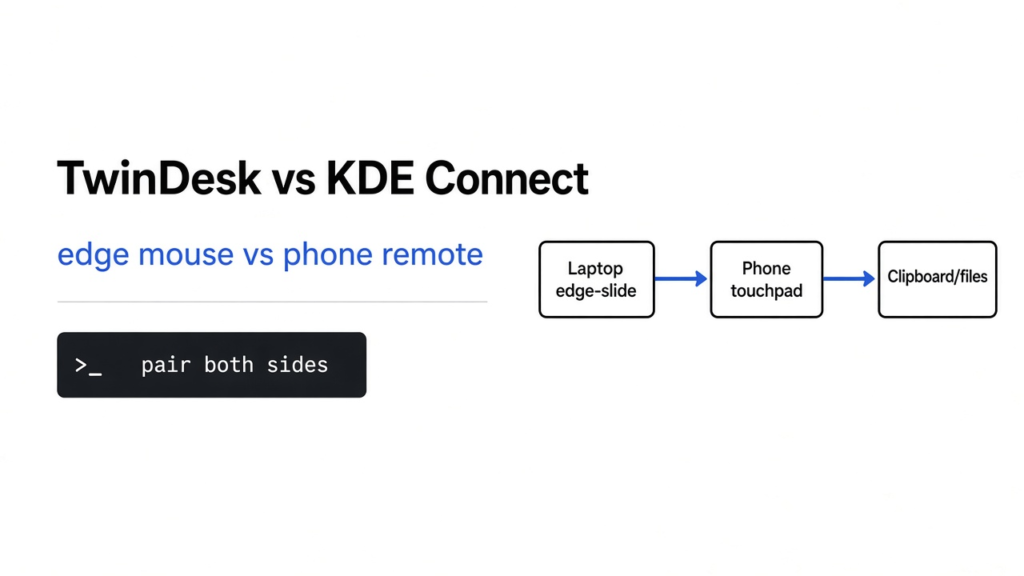

You have a laptop and a desktop on the same table, and the mouse only lives on one of them. The phone is a third machine that will not share a clipboard. TwinDesk is a free program that tries to make those machines one desk: one mouse, one keyboard, files, and the phone. KDE Connect is the older program that ties a phone to a computer. In twindesk vs kde connect, TwinDesk is the one that also slides the pointer off the edge of one screen onto the other computer. KDE Connect does not do that job. It lets the phone act as a touchpad, and it shares notifications, files, and clipboard text.
Checked November 2026 against TwinDesk on GitHub and kdeconnect.kde.org. The mouse, clipboard, and pairing-timer unit checks below printed kvm-moves: ok, clipsync: passed, and pairlimit: ok.
A desk in this sense is not a piece of furniture. It is the set of things your hands already do: point, type, copy, and look at a screen. Each of those is a separate pipe between machines. A program can do one pipe and skip the others. That is why two famous tools feel similar in a store listing and then fail the job you actually have.
What is TwinDesk
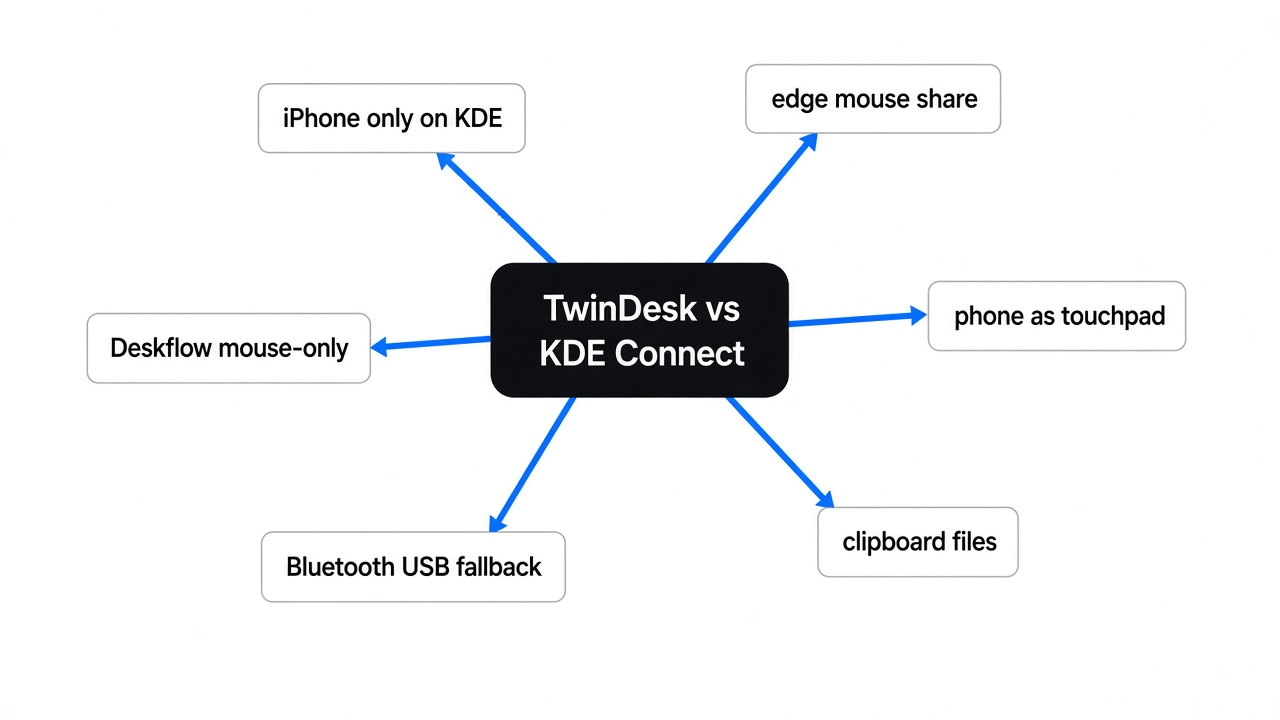
TwinDesk is one app you install on every machine you want in that desk. It runs on a Mac, on Windows 10 and 11, on Linux, and on an Android phone or tablet. There is no account and no company server in the middle. The machines talk only to the ones you have paired, on an encrypted link.
The computer-to-computer job is the one people mix up with a hardware switch. A KVM (one keyboard and mouse plugged into a box that picks which computer they drive) is a physical switch. TwinDesk is the same idea in software, plus the picture. You push the pointer off the edge of one screen and it shows up on the other computer. The keyboard follows. Scroll Lock locks the pointer on the machine you are on, so it does not hop while you are in a game or a full-screen call.
It also does jobs a plain mouse-share tool usually skips. The other computer’s apps can open in their own windows on this one. A spare laptop or an Android tablet can become a second screen. Clipboard text and pictures move across. Files can be dragged. On Linux the shared folder uses Samba (the old Windows file-sharing method) and shows up in the file manager. There is a terminal shortcut, ssh twindesk, when the link is a network link and not only a USB cable.
The phone job is the other half. An Android phone can share calls, texts, photos, its camera, and its screen. A tablet can sit as an extra display. The full Android package is the one that adds notifications, texts, and the Accessibility permission those features need. The smaller package is the lighter install. Play Protect may warn because the app is not from a store you already trust. That warning is about the signature, not proof the app is reading your messages for a server. The project says those messages go from the phone to the paired computer and stop there.
Every feature starts off. It is not loaded until you turn it on. That matters. A tool that can see your texts should not be listening on day one.
What is KDE Connect
KDE Connect is the free tool from the KDE desktop project that pairs a phone with a computer, or two computers, for the small shared things. Notifications, clipboard text, files, media buttons, and a remote touchpad. The phone becomes a big trackpad: you drag a finger and the computer’s pointer moves. You can also point the computer’s mouse at the phone, after Android allows that app to act as an input. There is an iOS app as well as Android, and desktop apps for Linux, Windows, and macOS.
That remote is not the same as sliding off the edge of a monitor. The phone is a separate controller. The pointer on the computer does not travel onto a second computer’s screen by itself. People have asked for that Synergy-style share as an extra plugin. It is not what you get when you install KDE Connect today.
KDE Connect is still the right tool when the job is the phone. It is signed, it has been the default answer on Linux for years, and the iOS build is something TwinDesk does not offer. If you only want “ping my phone” and “paste this link on the computer,” you do not need a second product.
The official desktop side is documented at kdeconnect.kde.org. TwinDesk’s code and installers are at github.com/InukaAsith/TwinDesk.
TwinDesk vs KDE Connect
TwinDesk wins when the desk includes two computers whose screens should feel like one, and a phone is optional. KDE Connect wins when the phone is the point and you already trust it. They overlap on clipboard text, files, notifications, and “use the phone as a remote.” They do not overlap on the edge-of-screen mouse.
| Job | TwinDesk | KDE Connect |
|---|---|---|
| Slide the pointer off one computer onto another | Yes | No |
| Phone as a touchpad for one computer | Yes | Yes |
| Clipboard text | Yes | Yes |
| Clipboard pictures | Yes, up to 10 megabytes, and not over Bluetooth alone | Text is the reliable part |
| Files, calls, texts | Yes, on the paths below | Files and some messaging, depending on the plugin |
| Android | Yes | Yes |
| iPhone | No | Yes |
| Account or cloud relay | No | No |
| Same Wi-Fi required for the fast path | No, but the fast path wants it | The usual path is the same network |
I would not uninstall KDE Connect the day I install TwinDesk if the phone link already works. I would add TwinDesk for the two computers, and leave KDE Connect in place until the phone features I use are actually on. Running both is fine. They are not fighting over one setting. They are two pairings.
One honest overlap: both can pair two computers for clipboard and files. If that is all you wanted, KDE Connect is the smaller install. TwinDesk is the heavier app because it also captures input and, when you ask, the screen.
TwinDesk vs Deskflow
Deskflow is the tool to name when the only job is the mouse. It is the free descendant of Synergy: one computer is the server, the others are clients, and the pointer crosses the edge over the local network. Clipboard sync is included. Video is not. Your phone is not part of the product. The project lives at github.com/deskflow/deskflow.
Use Deskflow when every machine is a computer, they already share a network, and you want the boring mature path. Use TwinDesk when a phone or a tablet is in the same pile, or when the cafe Wi-Fi blocks devices from seeing each other, or when you also want the other computer’s windows and camera on this screen. Use a hardware KVM when you do not trust any software with your keyboard at all. A box with a button cannot read your texts. It also cannot carry them.
If the thing you are isolating is a coding agent, not a second laptop, this is the wrong family of tools. A shared desk gives the other side your pointer. A cage does the opposite. Coop boots a throwaway machine so an agent can work without your real files, and the execution-container backends are the fences those agents already use. Do not install a desk-share app to “keep the agent safe.”
Does TwinDesk work without the same Wi-Fi
Yes, with a smaller pipe. The app does not ask you to pick a transport first. It uses the shared Wi-Fi when there is one, a USB cable when you plug the phone in, and Bluetooth when the Wi-Fi is gone or hostile. Bluetooth here is the short-range radio in the laptop and the phone, the same radio that pairs headphones. It is slow. A big file or a live screen does not stay on it.
Wi-Fi Direct (a private wireless link between two devices, with no cafe router in the middle) or a phone hotspot is the upgrade the app moves to when Bluetooth is not enough. Screens, apps, cameras, files, photos, and clipboard pictures take that faster path. On Bluetooth alone, those heavy items move over to Wi-Fi Direct. Session state, clipboard text, notifications, calls, texts, and the mouse can stay on Bluetooth. Even then, mouse moves are slowed on purpose so the radio is not flooded. The pointer share can pause for a partner whose session is only Bluetooth.
USB is the sure path for a phone on a train. Pairing can happen over the cable. The terminal shortcut does not. ssh twindesk wants a network link.
Guest Wi-Fi is the case that makes this matter. Many cafe and hotel networks let every device reach the internet and block them from reaching each other. Same “Wi-Fi name” is not the same as “these two laptops can talk.” If discovery fails on that network, the fix is not another password on the router. It is Bluetooth plus Wi-Fi Direct, or a cable.
There is still no cloud relay. If the two devices cannot see each other by radio or cable, TwinDesk does not bounce the traffic through a server to paper over it. That is the privacy property and the outage mode in one sentence.
Moving bytes to a machine you can already reach by SSH, without a public middle server, is a different job with the same taste. docker pussh sends only the image layers that server does not have. TwinDesk is for the live desk, not for shipping a container.
How to use TwinDesk
Install it on both sides before you expect them to see each other. One side alone has nothing to pair with.
On a Mac, Homebrew is the path that opens without a quarantine dance:
brew install --cask inukaasith/twindesk/twindeskIf you used the disk image instead and macOS says the app is damaged, it is usually the download quarantine, not a broken file:
xattr -dr com.apple.quarantine /Applications/TwinDesk.appOn Windows, download the setup, keep the file if the browser complains, and choose More info, then Run anyway, when SmartScreen appears. Smart App Control on some Windows 11 machines blocks unsigned apps with no Run anyway button. Turning that control off is a one-way door on many of those machines: Windows may not let you turn it back on without reinstalling. If that switch is on and you need it to stay on, do not install TwinDesk there. Use a machine where you can allow an unsigned app.
On Linux, use the deb, the AppImage, or the Arch package from the same release list. NixOS can start it with nix run github:InukaAsith/TwinDesk. On Wayland (the newer Linux display system, the one that replaced X11 on many desktops) the mouse needs permission to the input devices. The setup screen asks once. Shared folders want Samba.
On Android, install the apk, allow that source, and accept the Play Protect prompt only if you meant to install this build. Use the full apk if you want notifications and texts. The computer can push that fuller build over wireless debugging if you would rather not sideload it by hand.
Then open the app on both devices. They should list each other. Accept the pair only when the short code matches on both screens. That code is six digits, derived from the two sides’ keys, so a stranger on the same cafe radio should not be able to guess a match. After that, turn on clipboard first. It is the smallest proof the link is real. Turn on the pointer next, and set which edge of the screen faces the other computer. Turn on files, screen, and the phone’s calls only when you want them.
If the two copies disagree about the protocol, the message is specific. I checked it. An older copy says the other side is newer and tells you to update here. A newer copy tells you to update the other machine. A missing version line does not invent an error.
Mesh, the mode where several computers and phones stay linked at once, is still the beta path. A phone talks to one computer at a time in the simple setup. Camera and file sharing are not all available across every extra device in that mesh yet. Pair only machines you trust: a device you already paired can introduce another one without a fresh code if automatic join is on. Turn that off if you want every pair to be a manual yes.
Is TwinDesk worth it
It is worth it if you will really put two computers side by side, or you are tired of KDE Connect stopping at the phone. It is not worth it if you wanted a signed store app, an iPhone, or a mouse share and nothing else. Deskflow is smaller for that last case. KDE Connect is the one with the iPhone.
Two physical computers were not paired in this test; this machine has one session. The three unit checks that decide whether the shared library behaves were run instead. All three passed.
The mouse check sums tiny movements before they hit the wire. Fifty steps of one pixel to the right, while the link was marked backed up, became a single message: 50 across and 0 down. Nothing was sent while the backlog was high. When I cleared the backlog, one message carried the whole sum. On the Bluetooth setting, a move waited out a short delay instead of sending on the next tick, and a backed-up Bluetooth link held the moves instead of trickling them. That is the behavior you feel as “the pointer is smooth on Wi-Fi and sticky on Bluetooth.” The test name printed kvm-moves: ok.
The clipboard check is the bug that makes shared clipboards feel haunted. Windows copies the text A. Before that message arrives, the Mac copies B. A’s late arrival must not wipe B. The Mac kept B. Windows then accepted B, because B was newer, and ignored a later echo of A. A second case set the Mac’s clock four seconds behind and still let the Mac’s new copy win, because a copy made right after a receive is forced to be newer than what was just seen. A forged timestamp far in the future did not pin every later copy to that future. The test printed clipsync: passed.
Text on that clipboard stops at 256 kilobytes. A picture stops at 10 megabytes before it is encoded to send. A novel pasted by accident will not cross. A screenshot usually will, unless you are on Bluetooth alone, in which case the picture waits for Wi-Fi Direct.
The pairing timer check fired only for the phase it was armed for. Connecting gives the other side 8 seconds. A Bluetooth address triples that wait, so a slow radio gets 24 seconds instead of a false failure. Starting waits 15 seconds. Waiting for an answer waits 60. A stale timer from the previous phase did not fire a false alarm. The Bluetooth failure text includes the words “over Bluetooth,” so you can tell a radio problem from a wrong IP address. The test printed pairlimit: ok.
Those passes mean the rules are real in the code path the app ships. They do not mean your cafe will let two laptops see each other, or that an unsigned Windows install will pass Smart App Control. Run the clipboard across once on your own machines before you trust calls and texts to the same link.
Common questions about TwinDesk vs KDE Connect
can i use twindesk instead of kde connect
Yes, if you do not need an iPhone and you are fine installing an unsigned desktop build. For an Android phone plus one computer, both tools can do the remote, the files, and the clipboard text. Switch only if you also want the pointer to cross onto a second computer, or you need Bluetooth and a cable when the shared Wi-Fi is a dead end. If KDE Connect already does the phone job, keep it and add TwinDesk for the computers.
does twindesk work on linux
Yes, on X11 and on Wayland, for 64-bit PCs. Wayland needs the input permission, and shared folders need Samba. A few computer-to-computer features are smoother on X11. Read the setup screen on the first launch instead of assuming the Mac behavior.
is twindesk safe
The link is direct and encrypted, and there is no account. That removes one class of risk, a company holding your texts, and leaves another: any machine you pair can see what you turn on, and a paired machine can introduce another if automatic join stays on. The desktop builds are not signed with an Apple or Microsoft certificate you already trust. Check the code on the release you install if that bothers you. Do not pair a computer you do not hold.
what should I install if I only want one mouse
Install Deskflow. TwinDesk is the larger tool. Paying its setup cost is wasted if a phone, a second screen, and a camera are never part of the plan.
I will keep KDE Connect for a phone that only needs to ping the computer, and I will reach for TwinDesk when the second screen is another computer and the hotel Wi-Fi pretends the two machines are strangers. The pointer test is the one I would rerun after an update: fifty small moves should still collapse into one message when the link is busy. If they come back as fifty messages, the Bluetooth path has regressed, and the sticky cursor you feel is the bug.