
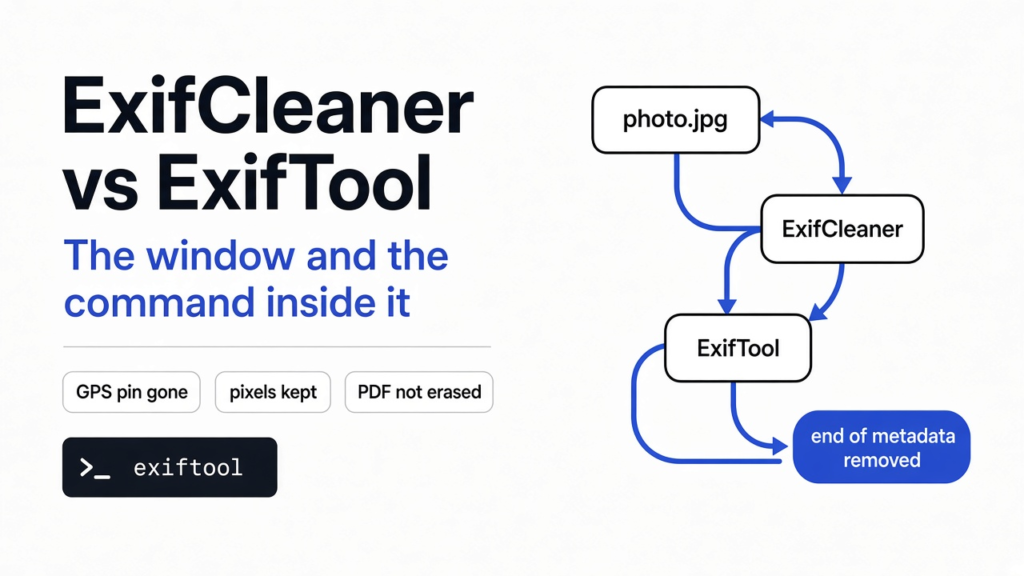
I dropped a photo of a desk into a chat and treated the file as the picture. The picture was only the colored squares. Beside those squares the file also held a camera name and a map pin. ExifCleaner vs ExifTool is the choice between a window you drop a folder onto and the command that window calls. Use the window for a pile of ordinary photos. Use the command when you need a script, or when you must leave one note in place. Do not trust either one to erase a PDF.
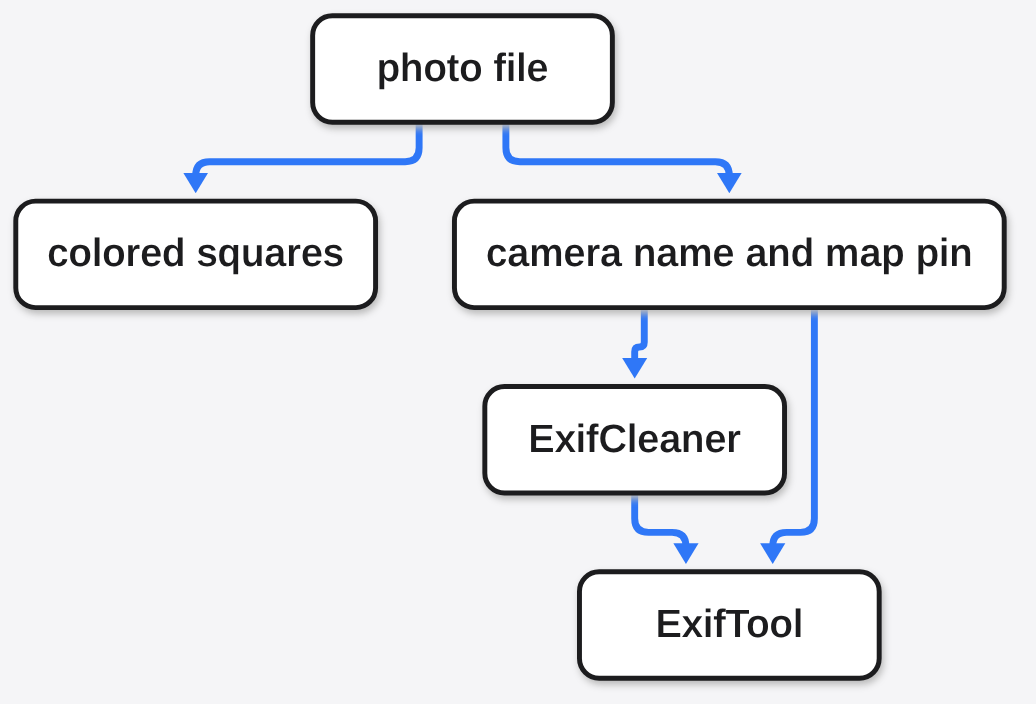
What is inside a photo file?
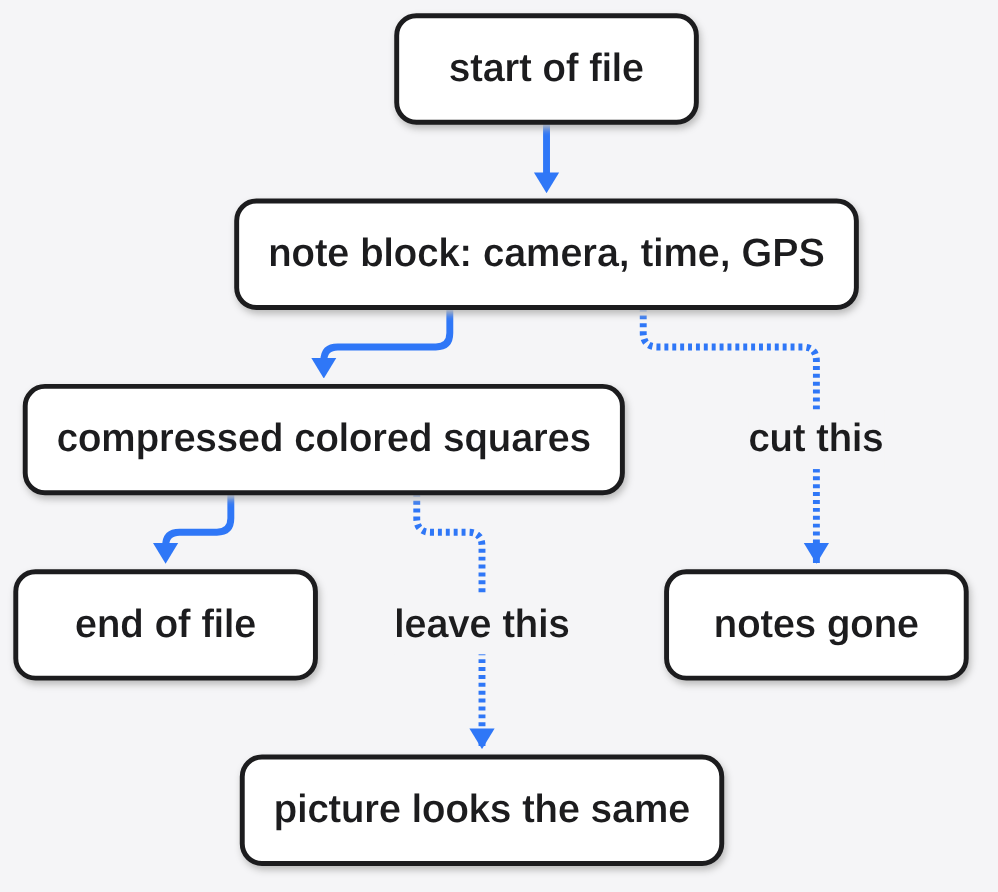
A photo file is two things stuck together, and the second thing is why a harmless picture can still tell on you. One part is the picture itself: a grid of colored squares, called pixels (the tiny dots that make the image). The other part is a set of notes the camera wrote beside those dots. Those notes are metadata (facts stored next to the picture, not inside the colors). The usual notebook for a camera is EXIF (time, lens, phone model, and sometimes where you stood). A map pin inside that notebook is GPS (latitude and longitude, the two numbers that point at a place on earth).
A JPEG (the common photo file a phone saves, with the colors squeezed so the file stays small) keeps those notes in a labeled chunk near the start. That chunk is an APP segment (an extra block viewers can skip and still draw the picture). The picture bytes come later. That split is the whole trick. You can cut the notes out and the photo still looks the same, because the colors never lived in the notes.
There are other notebooks in the same neighborhood. IPTC (an older caption format, used for a title or a credit) and XMP (a newer note format written as XML, which is text with labels) can sit in that same extra area. A phone mostly cares about EXIF and the GPS page inside it. If you only delete the word “GPS” in a viewer and leave the rest of the note block, you have not finished.
What I changed in one JPEG
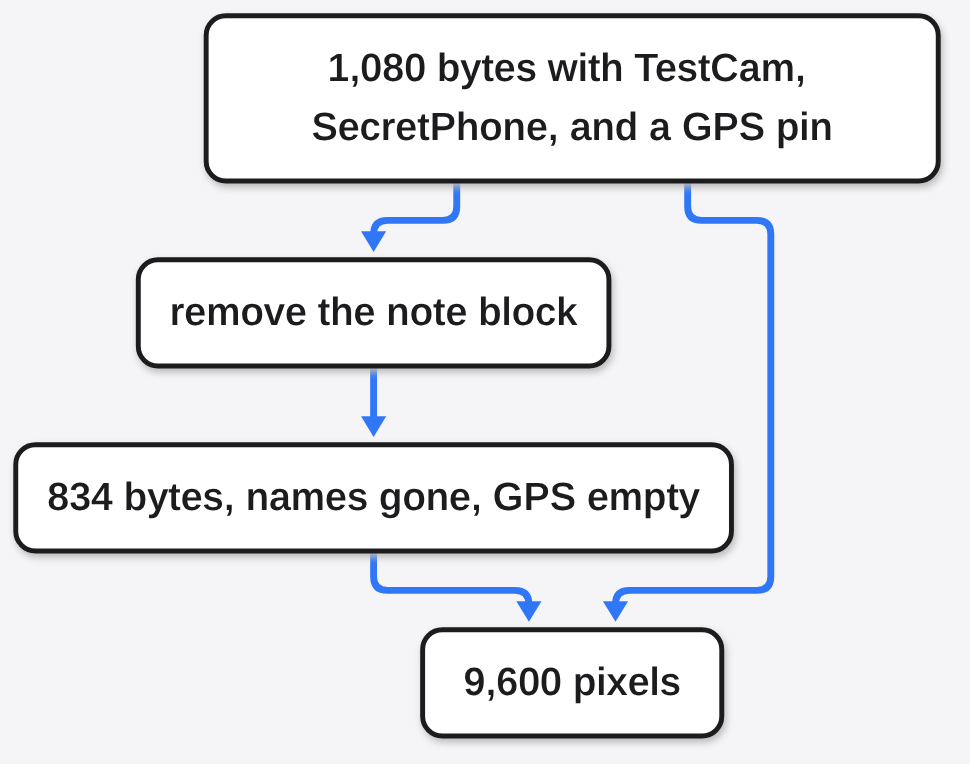
I made a tiny JPEG so I would know every dot before I trusted a cleaner. It was 120 by 80 pixels, 9,600 squares, filled with one flat color and a short red mark. I wrote three notes into it: a camera make of TestCam, a model of SecretPhone, and a GPS point I invented, 37 degrees 46 minutes 30 seconds north and 122 degrees 25 minutes west. I also wrote a time stamp. The file was 1,080 bytes. The words TestCam and SecretPhone were sitting in the raw bytes, next to the picture, which means anyone who opened the file in a note viewer would have seen a camera I made up and a place I made up.
I then cut the metadata block out and wrote a second file. That file was 834 bytes, 246 bytes lighter. The two names were gone. The GPS block was empty. I compared all 9,600 pixels. They matched, one square at a time. The picture did not move. Only the notes left. The file’s identity changed, which is what you want: same view, different bytes.
This is the same kind of cut a JPEG cleaner makes, and it is not a second product with a second opinion about pixels. ExifCleaner asks ExifTool (the command-line program that reads and rewrites those notes) to do the cut, and it keeps ExifTool open so a folder does not pay a startup cost on every file. The cut I measured was that note block. The photo stayed and the pin went.
One limit belongs next to that result. My file was a JPEG I built, not a camera RAW and not a PDF. The notes I planted were ordinary EXIF. A real phone can also tuck a private maker note (the camera brand’s own unlabeled blob) into the same area. Cutting the EXIF block removed the names I had written. It does not prove every private blob on every brand.
ExifCleaner vs ExifTool: which one do you need?
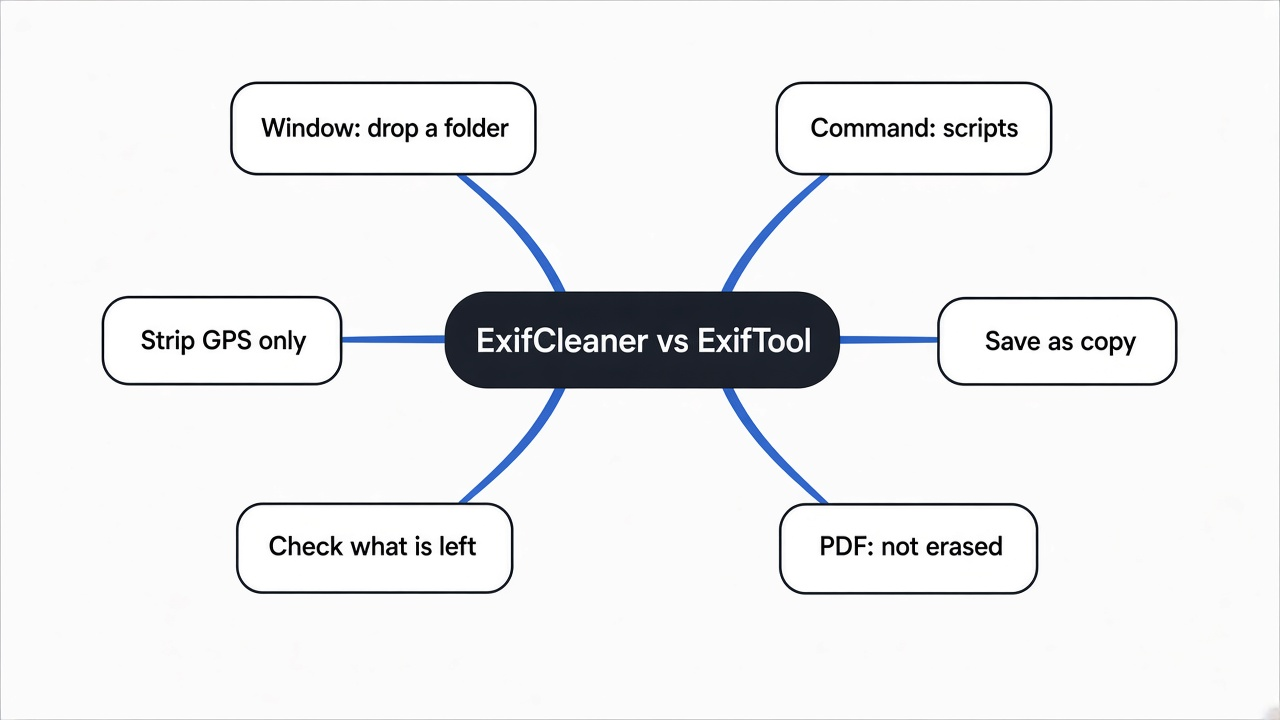
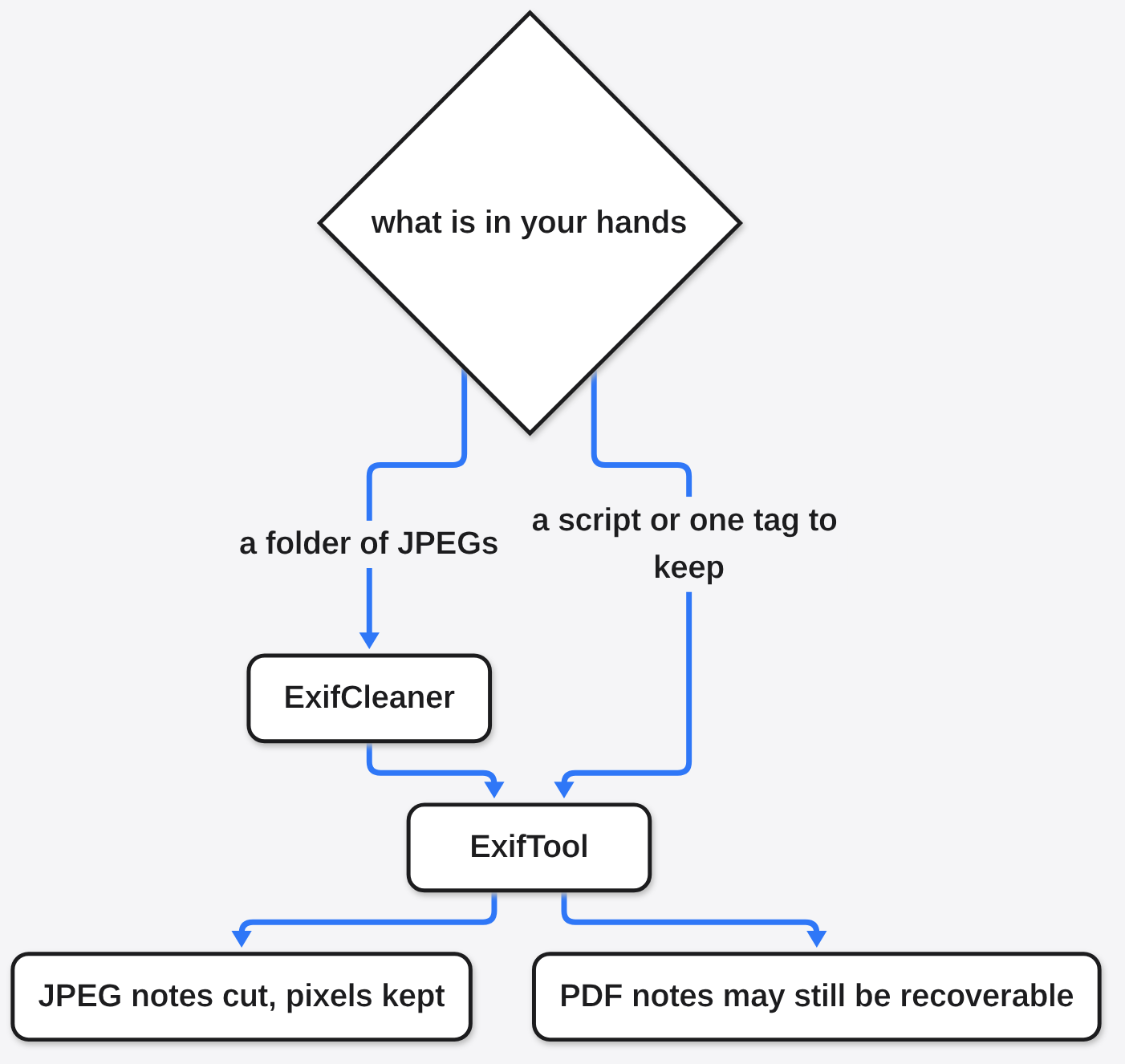
ExifCleaner vs ExifTool is not a fight between two engines. ExifCleaner is the window. ExifTool is the program inside the window. You want the window when the job is a folder of photos and you want to see what disappeared. You want ExifTool when the job is a script, one tag you must keep, or a machine with no screen.
| Job | ExifCleaner | ExifTool |
|---|---|---|
| Clean one photo or a folder by dropping it | yes, that is the point | you type a path |
| See a before and after list of notes | expand the row | you print the tags yourself |
| Keep the original file and write a copy | a switch you turn on | -o copy.jpg writes the copy |
| Keep only the orientation note | a switch | you exclude that tag yourself |
| Call it from a script or a server | no, it is a desktop window | yes |
| Securely erase notes inside a PDF | no, and it says so | no, the old notes can stay recoverable |
| Edit one tag and leave the rest | no, it is a cleaner, not an editor | yes |
The window is the right tool for a person who will not remember a flag. The command is the right tool for a person who will run the same line on every export. Installing the window does not remove the command. You can keep both, the way you keep a calculator and a spreadsheet.
Install is a download, not a package dance, unless you want it that way. On a Mac, take the dmg, and pick the arm64 build for Apple silicon (the M-series chips) or the other build for an Intel Mac. On Windows, the portable exe (a program you run without an installer) is the simple one, and there is a setup exe if you want a start menu entry. On Linux, take the AppImage, the deb, or the rpm. An AppImage (one file you run without a system install) has to be marked executable or the click does nothing. The app is not code-signed (the maker did not attach the stamp macOS and Windows look for), so the first open asks you to approve it. Approve it once, then it opens like any other app.
The download is large for the size of the job because the window is an Electron app (a website wrapped so it looks like a desktop program, which means it carries its own browser). If you wanted a small window around a Python script and you do not need this cleaner, that is a different question, answered on what is a lightweight alternative to Electron for Python. Here the weight is the price of drag and drop.
How do I remove GPS from a photo?
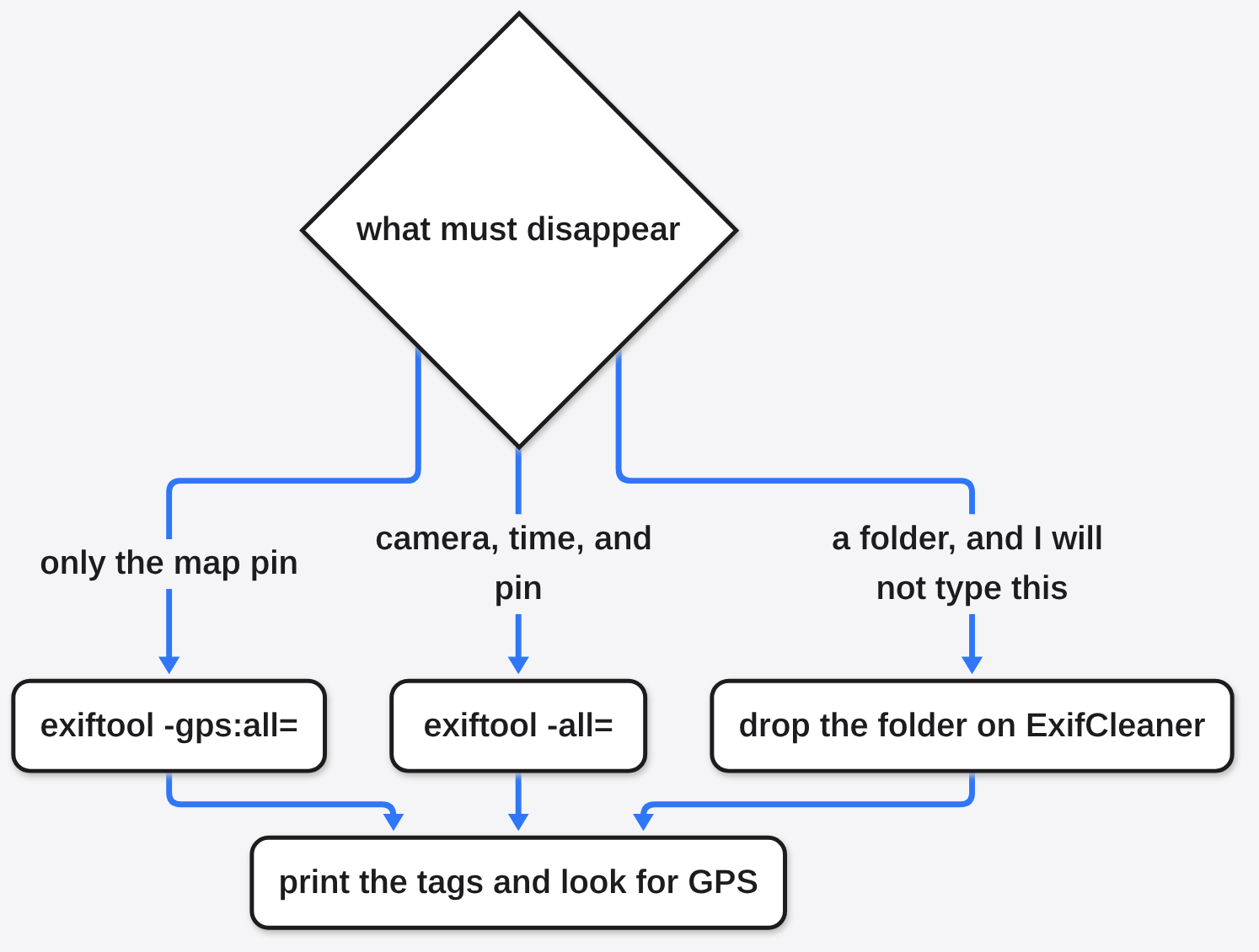
You remove GPS from a photo by deleting the note, not by cropping the picture. Cropping changes the pixels and can leave the pin sitting in the note block, which is the opposite of what you wanted. Deleting the note leaves the pixels and drops the pin. That is what the 9,600 matching squares in my file were for.
In the window: install ExifCleaner, turn on save as copy if you cannot lose the original, then drop the file or the whole folder. Folder drop walks the files inside, so you do not drag them one by one. Expand a row when it finishes and read what was removed. If the location lines are in the “gone” side and the picture still looks right, that file is done.
On the command side, this is the line that removes the pin and leaves the other notes:
exiftool -gps:all= -overwrite_original photo.jpgThis is the line that removes the notes more broadly, which is what I did to my test file:
exiftool -all= -overwrite_original photo.jpg-overwrite_original means the cleaned bytes replace the file you named. Without a copy flag, there is no undo inside the file. If you only wanted the pin gone, use the first command. The second one also takes the time, the lens, and the phone model. I wanted those gone in the test, so the second kind of cut is the one I measured.
Does ExifCleaner delete the original?
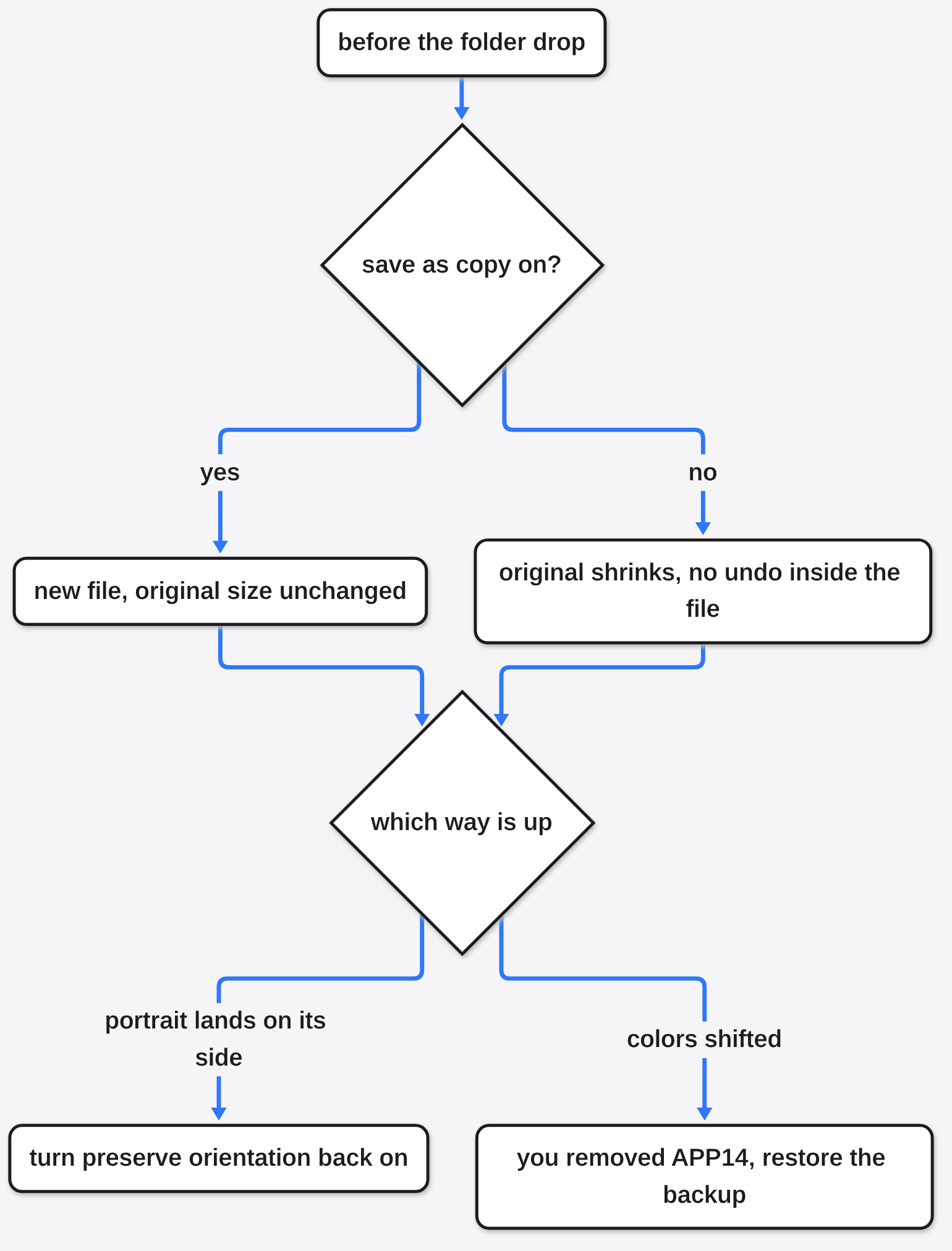
It can, and that is the part to get right before the folder drop. There is a save-as-copy control so the cleaned bytes go to a new file and the one you dropped stays put. Turn it on before you drop a folder you cannot replace, and do not assume the default. The check is physical: clean one photo, then look at the original’s size. If the original shrank, the notes were cut out of the file you started with. If a second file appeared and the first file stayed the same size, the copy switch did its job.
Two other switches exist because “delete every note” is sometimes the wrong cut. Preserve timestamps keeps the file’s old time, so a sort-by-date does not jump the photo to the minute you cleaned it. Preserve orientation keeps the note that says the picture is sideways. Some viewers do not look at the pixels to decide which way is up. They read that note. Strip it, and a portrait can land on its side even though you did not rotate a single square.
On a JPEG, the cleaner also leaves a small Adobe color block, APP14, in place on purpose. Pulling that block out can shift the colors. A tool that “removes everything” and also changes the reds has not done a privacy job. It has edited the picture. If the colors move after a clean, stop and keep the backup. The project says to keep backups because a damaged file is still possible, even when the usual path is only a cut of the note block.
Can ExifCleaner clean a PDF?
No, not in the way people mean by “clean.” A PDF (a document that can hold text, pictures, and its own notes such as author and title) is not a JPEG. The notes are not a side chunk you can snip off while the pages stay byte-for-byte. ExifTool writes an update onto the PDF, and the older notes can still be recovered from the file. ExifCleaner states the limit directly: the original PDF metadata is never actually removed. Dropping a PDF on the window can look finished. It is not a secure erase.
If the document has to lose those notes for real, you need a rewrite that builds a new file, not a sticker on the end of the old one. That rewrite is the job compared on pdfcraft vs qpdf. A photo of a desk and a ten-page contract are both “files,” and they fail in different places. Do not let one success on a JPEG talk you into the other.
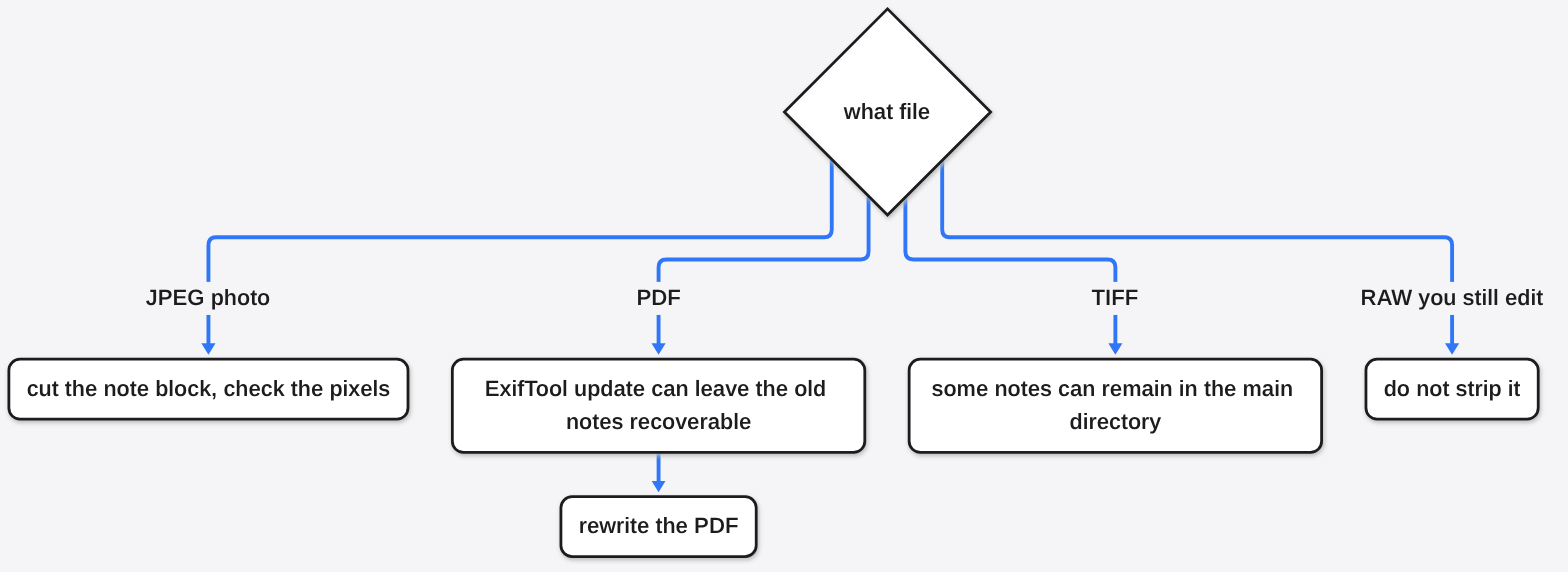
TIFF (an older picture format that stores notes in the same tree as the image, not in a side chunk) can keep some EXIF in the main directory after a wipe. Treat a “cleaned” TIFF as a maybe until you print the tags. RAW (the camera’s uncooked file, before it becomes a JPEG) is a worse bet. Those private notes can be part of how the picture is drawn. Strip them and the photo you meant to edit can come back wrong, or not at all. One RAW type, RAF, is refused and left untouched, because a safe cleaned file cannot be promised. AVIF (a newer photo format) has a reported case where removal was only partial. Export a JPEG from the RAW, clean the JPEG, and keep the RAW at home.
How do I check a photo is clean?
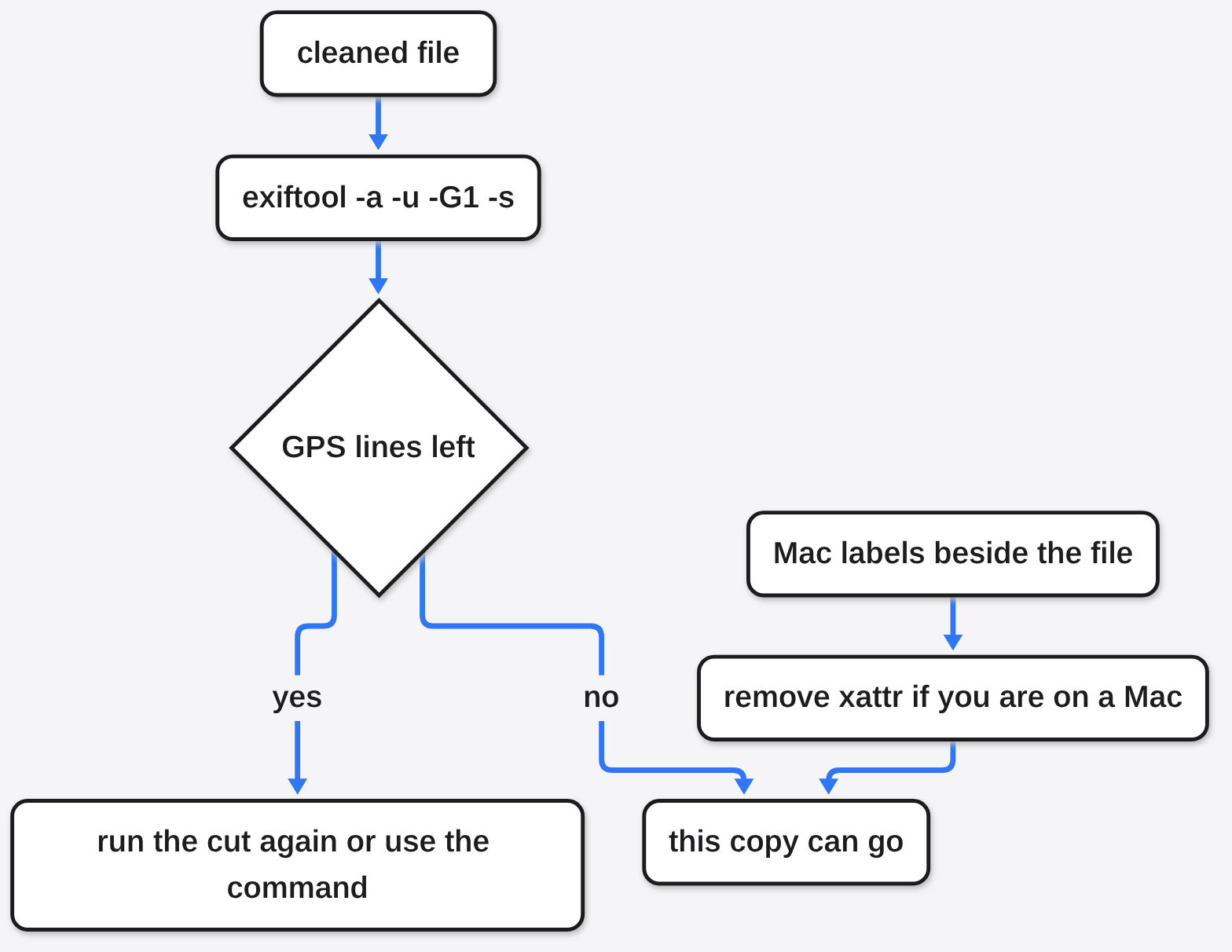
You check a photo is clean by reading the notes after the cut, not by looking at the picture. The picture was never the secret. Print every tag, including ones a friendly viewer hides:
exiftool -a -u -G1 -s photo.jpg-a shows duplicate tags, -u shows unknown ones, -G1 names the group, and -s prints the short tag name. You want no GPS latitude, no GPS longitude, and no phone model if the model was the secret. In the window, expand the row and read the diff (the list of notes that were there and are now gone). If location is on the gone side and the picture still looks right, including which way is up, the JPEG job worked. My test file went from a full GPS block to an empty one, and the names TestCam and SecretPhone were absent from the bytes. That is the pattern you are looking for, on your own photo.
A Mac can also keep notes beside the file. Those are extended attributes, or xattr (sticky labels the file system stores next to the file, not inside the JPEG). They can hold where a download came from. They often disappear when the file moves to a disk that is not a Mac, and they can survive a clean that only rewrote the JPEG. ExifCleaner has a switch for them. Cleaning the bytes inside the JPEG does not touch those labels. On a Mac, turn the switch on, then list the labels. A clean picture can still be a chatty file.
Uploading is not a cleaner either. Many large social sites strip EXIF when the photo arrives. Mail, a zip, a USB stick, and a shared drive usually do not. If ExifTool can still see a GPS tag, the pin is in the copy you are about to send, no matter what a website preview did last time. Clean the file on your machine, then send that file. The same habit shows up whenever a file looks like the thing you see and quietly carries a second thing, which is the point of an ad is not a picture for a different kind of file.
When should I leave the notes on?
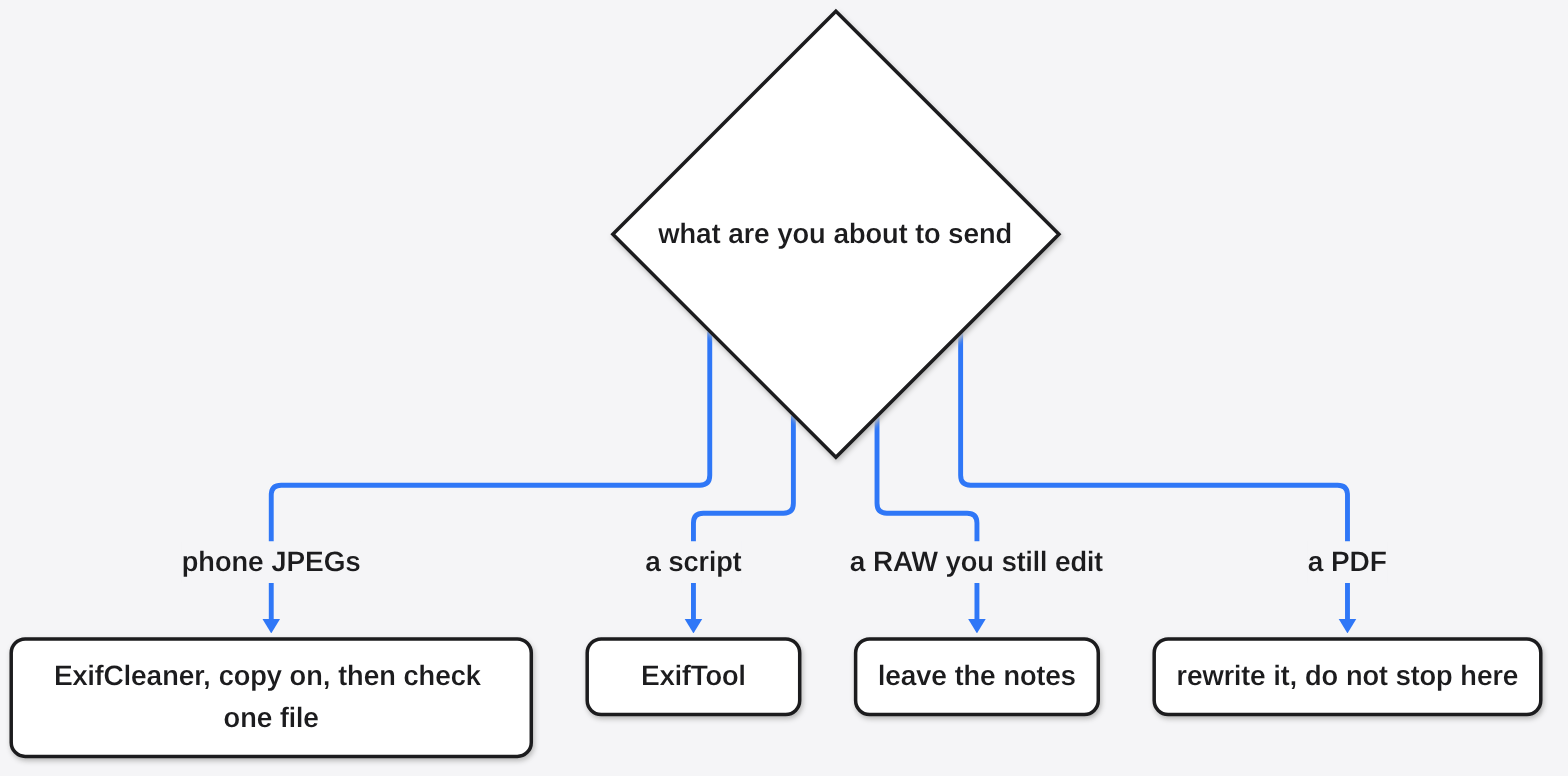
Leave the notes on when you still need them, which is more often than a privacy checklist admits. A photographer sorts a shoot by the time the shutter fired. Strip that time and the folder becomes a pile. A RAW you will still edit should keep its private notes. A scan that is really a PDF should go to a PDF tool, not to a photo cleaner. Fifty phone pictures you are about to text are the case for the window, with a copy saved and one file checked. One weird file inside a script is the case for the command, where you can name the tags you refuse to touch.
I would hand someone the folder and the save-as-copy switch, and I would ask them to open one cleaned JPEG and look for the pin. I would not hand them a PDF and call the same gesture done. The command and the window agree on the JPEG. They also agree on the PDF, and the agreement is that they are the wrong last step. The project itself is the place to confirm the switches and the file types: ExifCleaner and ExifTool.
Common questions about ExifCleaner and ExifTool
How do I remove location data from a photo before I send it?
Drop the JPEG on ExifCleaner with save as copy turned on, or run exiftool -gps:all= -overwrite_original photo.jpg if you want the other notes kept. Then run exiftool -a -u -G1 -s photo.jpg and confirm there is no GPS latitude. The picture should look the same, including which edge is up. On my test JPEG the pin disappeared and all 9,600 pixels stayed.
Does ExifCleaner delete my original file?
It will if you do not save a copy. Turn on save as copy, clean one file, and check that the original size did not change. A smaller original means the notes were cut out of the file you started with. The command equivalent of a copy is exiftool -all= -o cleaned.jpg photo.jpg, which leaves photo.jpg alone.
Is it safe to strip metadata from a RAW photo?
Not if you still need to edit that RAW. The private camera notes can be part of how the picture is drawn. RAF is refused and left unchanged rather than written out as a guess. Export a JPEG, clean the JPEG, and keep the RAW.
Why is the location still on a photo after I post it somewhere?
Many big social sites strip EXIF on upload. Email, chat attachments, zip files, and a shared drive often keep the notes. If ExifTool still prints a GPS tag, the pin is in that file. Clean the copy on your machine before you send it, and do not treat a website preview as proof.