
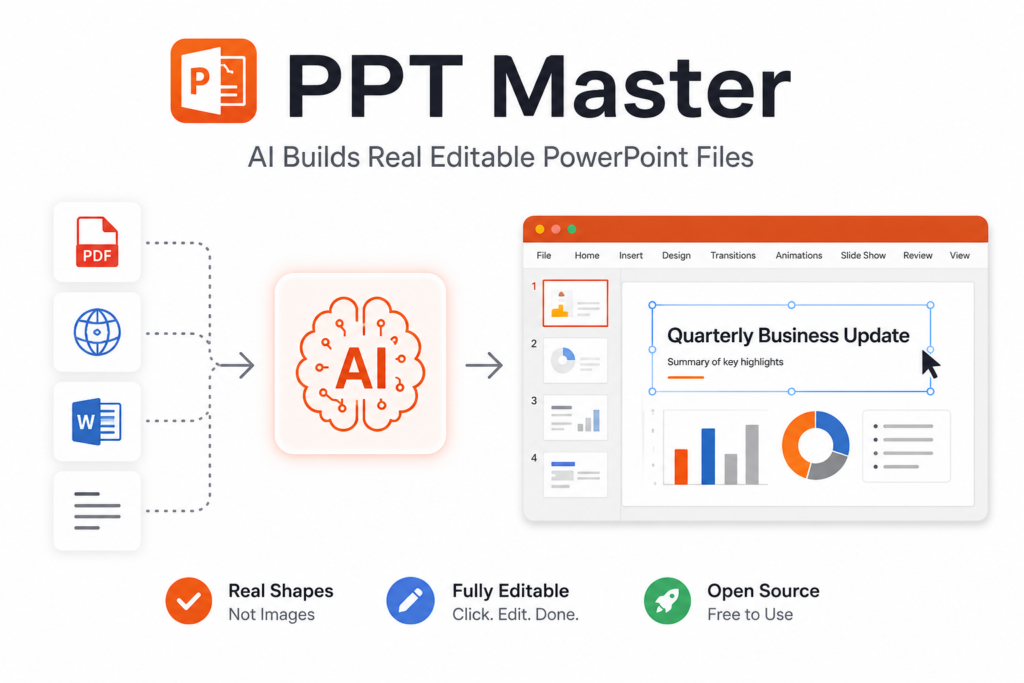

PPT Master is an MIT-licensed workflow that lets an AI agent build PowerPoint decks you can still edit: every box, line and text block arrives as a native PowerPoint shape, not a flattened picture. It is not an app. It is a set of instructions and Python scripts that an agent such as Claude Code, Codex or Cursor follows on your machine. The model designs each slide as an SVG file, and PPT Master’s scripts convert those SVGs into real DrawingML shapes inside a .pptx.
I installed it, created a project, wrote one slide by hand in place of the model, and pushed it through the checker and converter to see exactly what comes out the other end. This guide covers the setup, the two errors that will stop you on the first run, what the exported file really contains, and when a different tool is a better fit.
Tested on Oct 23, 2026 with PPT Master v6.7.3 (commit 523e5bd) on Python 3.13.5, Debian; output checked with python-pptx, LibreOffice and OfficeCLI.
How PPT Master turns a prompt into an editable PowerPoint
The pipeline has four stages. You give the agent your material (a PDF, Word file, Markdown or pasted text). The agent confirms a design spec with you: template or free design, 16:9 or 4:3, number of pages, style. It then writes one SVG per slide into svg_output/. Finally, PPT Master’s scripts check those SVGs and translate each element into the matching PowerPoint object.
SVG is a smart choice for the middle step. Models write SVG well because it is just text with coordinates, and almost every SVG element has a direct PowerPoint equivalent: a <rect> becomes a rectangle shape, <text> becomes a text box, a <line> becomes a connector or freeform. The project keeps a feature-by-feature mapping guide in its docs, and it says plainly that SmartArt is deliberately not supported.
The README is also honest about where quality comes from: “PPT Master only owns the workflow; the model sets the ceiling.” It recommends a strong model with a large context window plus an image model, and warns not to expect a finished deck in one shot.
Installing PPT Master
You need Python 3.10 or newer and an agent that can read files and run commands. Pandoc is only needed for older formats such as .doc, .odt or .rtf; .docx, .html, .epub and .ipynb are handled in Python.
git clone https://github.com/hugohe3/ppt-master.git
cd ppt-master
python3 -m venv .venv && . .venv/bin/activate
pip install -r requirements.txtOn my machine the requirements installed in about 20 seconds. On Debian and Ubuntu, use a virtual environment as above: a plain pip install into the system Python is refused by the OS. You can also install only the skill files through npx skills add hugohe3/ppt-master or the Claude Code plugin marketplace, but you still need to run the pip install step from the installed folder, because the conversion scripts are Python.
Then open the ppt-master folder in your agent and ask, for example, “Please create a PPT from projects/q3/sources/report.pdf”. The agent reads the repo’s own CLAUDE.md or AGENTS.md and follows the workflow from there. The scripts folder has 81 Python files, so you will not be running them by hand in normal use.
Running the pipeline by hand: what each step does
To see the machinery, I ran the scripts myself. First a project:
python3 skills/ppt-master/scripts/project_manager.py init rsdemo --format ppt169
python3 skills/ppt-master/scripts/project_manager.py import-sources projects/rsdemo_ppt169_20261023 q3.mdThat created a dated project folder with sources/, svg_output/, svg_final/, exports/, notes/, validation/ and a few others, and logged every command to validation/workflow.log. Then I wrote the slide the model would normally write, a title, two rounded cards and a connecting line:
<svg xmlns="http://www.w3.org/2000/svg" lang="en" width="1280" height="720" viewBox="0 0 1280 720">
  <rect x="0" y="0" width="1280" height="720" fill="#F5F5F7"/>
  <text x="80" y="140" font-family="Arial" font-size="56" font-weight="bold" fill="#111111">Q3 review</text>
  <rect x="80" y="220" width="500" height="200" rx="16" fill="#2f77f7"/>
  <text x="120" y="320" font-family="Arial" font-size="36" fill="#FFFFFF">Revenue +12%</text>
  <rect x="680" y="220" width="500" height="200" rx="16" fill="#1C1C1E"/>
  <text x="720" y="320" font-family="Arial" font-size="36" fill="#FFFFFF">Churn 3%</text>
  <line x1="580" y1="320" x2="680" y2="320" stroke="#111111" stroke-width="6"/>
</svg>The two errors you will hit first
The quick path is svg_to_pptx.py <project> --quick-generate. It refused twice before it worked, and both messages are useful once you know what they mean.
1. A quality report is required. Without one, the converter stops:
Error: --quick-generate requires a passing final SVG quality report for the current svg_output/; found not-provided.
Run: python3 skills/ppt-master/scripts/svg_quality_checker.py "projects/rsdemo_ppt169_20261023" --quick-generate --canonical-authoring --stage final --jsonThis is a deliberate gate: the checker catches SVG features that would not convert cleanly before you get a broken deck. Running the suggested command passed with five warnings: no root font-family, lowercase hex colours, elements not grouped, and no data-pptx-page-role attribute. None blocked the export, but they tell you how the project prefers slides to be written.
2. Do not pass a source folder in quick mode. Adding -s svg_output produced --quick-generate cannot be combined with: --source must be omitted or output. Leave it off. Separately, if the first slide’s <svg> has no lang attribute you get a warning and the script falls back to guessing the language per text run; adding lang="en" silenced it.
With the report in place, conversion took 1.12 seconds:
Converted 6 elements, skipped 0, promoted 1 background
Mode: Native DrawingML shapesWhat is actually inside the exported .pptx
The output was a 12,939-byte file. I opened it three ways to check the “editable” claim rather than trust it.
| Check | Result |
|---|---|
| python-pptx shape types | 3 text boxes, 2 auto shapes (the cards), 1 freeform (the line) |
| Media files inside the zip | 0, so nothing was rasterised into a picture |
| LibreOffice render | Title, both cards and the line in the right places and colours |
| OfficeCLI validate | Passed; outline shows the slide as “(untitled)” |
That last row is the one trade-off I would flag. Because my slide was free-form SVG, the title became an ordinary text box rather than PowerPoint’s title placeholder. It looks identical, but PowerPoint’s outline view, accessibility tools and anything that reads slide titles will see an untitled slide. The README says the template route can produce real slide masters and layouts; if titles matter to you, for screen readers or a table of contents, use a template rather than free design.
If you want to make small edits to the exported deck from a script afterwards, OfficeCLI opened it without complaint.
Keeping your projects when you update
PPT Master changes quickly; the version I tested was released the day before. Your decks live in the projects/ folder inside the repo, so update with care. For a git clone, the project ships an update script that pulls the latest code and reinstalls dependencies when requirements.txt changes:
python3 skills/ppt-master/scripts/update_repo.pyFor a ZIP download there is no git history, so the README’s advice is to unzip the new version into a fresh folder and copy your old .env and projects/ folder across. Either way, keep a backup of projects/ first. Each conversion also copies the slide SVGs into a dated backup/ subfolder inside the project, so you can rebuild an earlier version of a deck if a later run changes it.
Costs, models and the sponsor links
PPT Master itself is free. What you pay for is model usage: every slide is written by the model, and if you enable AI image generation, each picture is a separate paid call. The README recommends Kimi K3 or Claude for the agent, and gpt-image-2 or Google’s Gemini image model for pictures; cheaper models run the same pipeline with a visible quality gap.
Be aware that several links in the README are sponsor affiliate links (Kimi, PackyCode, APIKEY.FAN, RunAPI). That is a normal way to fund open source, but you do not need any of them; any Anthropic, OpenAI or Google key your agent already uses will work.
PPT Master vs other ways to make slides with AI
| You want… | Better choice | Why |
|---|---|---|
| A designed deck from a long document | PPT Master | It plans pages and design, then exports native shapes |
| To edit text or numbers in an existing deck | OfficeCLI | Direct paths to each shape, no redesign |
| A quick deck straight from chat with no setup | Claude Code alone | See our guide; good enough for simple layouts |
| Posters and social graphics, not slides | A design tool | Slides are the wrong canvas for that work |
For the chat-only approach, see how to make a PowerPoint with Claude Code. For one-off graphics rather than decks, our look at free open source Canva alternatives is a better starting point.
Common questions about PPT Master
Are PPT Master slides really editable in PowerPoint?
Yes. In my test every element came out as a native text box, shape or freeform, with no embedded images. You can click and edit each one. Free-design slides may not use PowerPoint’s title placeholder, so titles appear as plain text boxes.
Do I need to know how to code?
No. In normal use you talk to your agent and it runs the scripts. You do need Python installed and an agent that can run commands.
Which AI model works best with PPT Master?
The README recommends Kimi K3 or Claude with a large context window, plus an image model if you want generated pictures. Other models work with lower quality.
Why does svg_to_pptx say a quality report is required?
Quick mode needs a passing report from svg_quality_checker.py first. Run the exact command the error prints, then convert again.
2 comments